
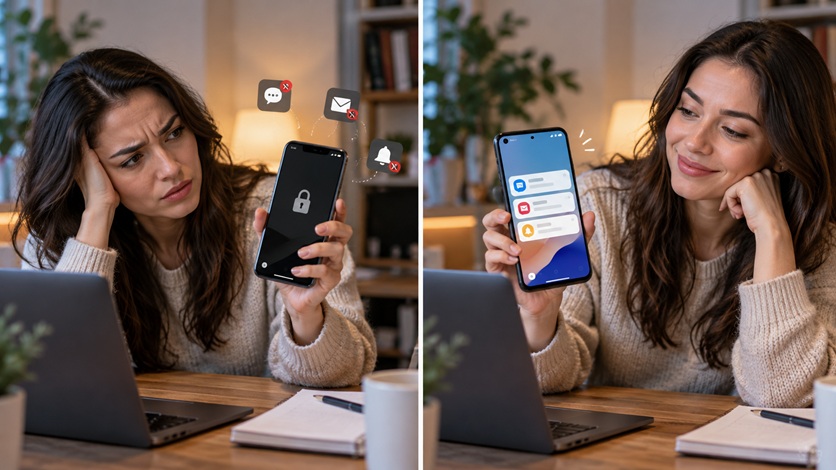
Have you ever left your Android phone locked for several minutes and received no WhatsApp messages, emails or app alerts—only for several notifications to suddenly appear the moment you unlock the screen?
This is a common Android problem.
Your phone may still have an internet connection, but Android or yo,nnlllllllll/ur phone manufacturer’s battery-management system may be restricting the affected app while the screen is off
Android uses power-saving technologies such as Doze, App Standby and Battery Saver to reduce unnecessary background activity. Google’s Android documentation explains that Doze can temporarily defer background CPU and network activity while a device remains unused, while App Standby can restrict apps that have not recently been used.
Normally, these features improve battery life. But if an important messaging, email, banking or business app becomes too restricted, notifications may not arrive until you wake or unlock the phone.
In this Cyberhub ICT guide, we’ll show you how to fix delayed Android notifications without immediately disabling every battery-saving feature on your phone.
Why Notifications Suddenly Arrive After Unlocking
Unlocking your phone wakes the device and increases the resources available to applications.
Apps can then reconnect, synchronize pending information and process background activity that may have been delayed while the device was idle.
Android’s Doze system is specifically designed to defer certain background network and CPU activity while a device remains unused. Once the device wakes, pending work can resume.
That is why you may suddenly hear:
Ping. Ping. Ping.
Several messages appear almost immediately after unlocking.
The important question is what is preventing those notifications from arriving earlier.
1. Turn Off Battery Saver Temporarily
Start with one of the most common causes.
Go to:
Settings → Battery → Battery Saver
Temporarily turn Battery Saver off.
Google states that Battery Saver can limit or switch off background activity, and some apps, network connections and features may therefore experience delays.
Now lock your phone and ask someone to send you a WhatsApp message.
If the notification suddenly begins arriving normally, Battery Saver was probably contributing to the problem.
You do not necessarily need to leave Battery Saver permanently disabled. Instead, check whether it is scheduled to activate automatically when your battery reaches a certain percentage.
2. Remove Battery Restrictions From the Important App
Android allows individual apps to have different battery permissions.
Open:
Settings → Apps → Select the affected app → Battery
Depending on your phone, you may see options such as:
Unrestricted
Optimized
Restricted
If WhatsApp, Gmail, Teams, Slack or another important app is set to Restricted, change it to Optimized or Unrestricted and test again.
Android’s App Standby system gives fewer resources to apps placed into more restrictive categories. Apps explicitly designated by the user for unrestricted functionality can be exempted from some of these restrictions.
Do not make every application unrestricted.
That could increase battery consumption significantly.
Use unrestricted access mainly for applications where timely notifications genuinely matter.
3. Make Sure Background Data Is Allowed
An app may be allowed to remain installed and active but still be prevented from accessing mobile data in the background.
Go to:
Settings → Apps → App Name → Mobile Data
or:
Settings → Apps → App Name → Data Usage
Look for:
Background Data
Make sure it is enabled.
This is especially important for apps such as WhatsApp, Gmail and other messaging platforms that need to communicate with online servers while you are not actively looking at them.
If background data is blocked, messages may appear only when the app becomes active again.
4. Check Data Saver
Android’s Data Saver can reduce mobile-data consumption by restricting background access.
Go to:
Settings → Network & Internet → Data Saver
If Data Saver is enabled, check whether your important messaging or email application can be given unrestricted data access.
This lets you keep Data Saver active for less important apps while still allowing essential notifications to arrive.
The best approach is not to give every application unlimited access.
Prioritize the apps you genuinely need.
5. Samsung Users: Check Sleeping and Deep Sleeping Apps
Samsung phones include additional battery-management controls.
Go to:
Settings → Battery → Background Usage Limits
Depending on your Galaxy model, you may see:
Sleeping Apps
Deep Sleeping Apps
Never Sleeping Apps
If WhatsApp, Gmail or another important application appears inside Deep Sleeping Apps, remove it.
A deeply sleeping app may not be allowed to perform normal background activity until you manually open it.
For an app where immediate notifications are essential, consider adding it to the Never Sleeping Apps list.
Do this selectively because keeping many applications constantly active can increase battery use.
6. Check Notification Permission
Sometimes Android is receiving the information perfectly, but notifications are disabled.
Go to:
Settings → Apps → App Name → Notifications
Make sure:
Allow Notifications
is switched on.
Also examine individual notification categories if your phone provides them.
For example, one app might separately control alerts for messages, calls, group messages, promotions or other activity.
You could have general notifications enabled while the particular category you need is switched off.
7. Check Lock-Screen Notification Settings
If notifications appear after unlocking but never show on your lock screen, the problem may simply be your display settings.
Go to:
Settings → Notifications → Lock Screen Notifications
Make sure notifications are allowed on the lock screen.
You may see options such as:
Show notifications
Show content
Hide sensitive content
Icons only
Choose the option that matches your privacy preference.
If you prefer not to display private message contents, you can usually hide the message text while still showing that a new notification has arrived.
8. Check Do Not Disturb
Do Not Disturb can also make notifications appear missing.
Open:
Settings → Notifications → Do Not Disturb
Check whether it is enabled.
Also examine scheduled settings.
For example, your phone may automatically enter Do Not Disturb during bedtime, meetings or certain hours.
The notification might technically arrive but remain silent until you check your phone.
9. Check Automatic Sync
This is particularly important for Gmail and other account-based applications.
Go to:
Settings → Accounts
or:
Settings → Passwords & Accounts
Make sure automatic synchronization is enabled.
For Gmail, open the Gmail app and check:
Gmail → Settings → Select Account → Sync Gmail
If syncing is disabled, new messages may not appear until you manually open Gmail.
10. Check Whether Android Has Restricted the App Because You Rarely Use It
Android can place applications into different standby categories based partly on how frequently they are used.
The categories range from actively used apps to increasingly restricted apps. Less frequently used applications can face stronger limits on background jobs, alarms and network activity.
Go to:
Settings → Apps → App Name
Look for options such as:
Pause App Activity If Unused
Remove Permissions If App Isn’t Used
or similar wording.
If the application is important even though you rarely open it manually, review these settings.
11. Tecno, Infinix and Itel Users: Check Power Management
Some Android manufacturers include their own power-management applications.
Depending on your device, you may see names such as:
Phone Master
Power Marathon
Battery Lab
Auto-start Management
or:
Background Management
Check whether the affected app is allowed to:
Run in the background.
Auto-start.
Use mobile data.
Send notifications.
If WhatsApp works normally while the screen is on but messages are delayed when the phone sleeps, aggressive manufacturer battery management is worth investigating.
12. Xiaomi, Redmi and POCO Users: Check Battery Saver and Auto-Start
On many Xiaomi-based phones, look under:
Settings → Apps → Manage Apps → Select App → Battery Saver
Remove aggressive restrictions for apps where real-time notifications matter.
Also search Settings for:
Auto-start
and allow important messaging applications to start automatically where necessary.
This can be particularly useful after restarting your phone.
13. Oppo, Realme and OnePlus Users: Review Background Activity
These devices may include settings such as:
Auto Launch
Run in Background
App Battery Management
or:
Optimize Battery Use
Check the app that is experiencing delayed notifications and ensure it is not being aggressively restricted.
Menu names can vary depending on your Android and manufacturer software version.
14. Remove Third-Party RAM Boosters and App Killers
Have you installed an application promising to:
“Boost RAM”
“Extend battery life”
“Clean memory”
or:
“Kill background apps”?
It may actually be causing your notification problem.
Modern Android already manages memory and background activity automatically.
Additional apps that aggressively terminate processes can close messaging applications before notifications arrive.
Temporarily uninstall the cleaner or booster app and test again.

15. Stop Constantly Clearing Important Apps
Many Android users regularly open the Recent Apps screen and tap:
Clear All
because they believe this makes the phone faster.
You usually do not need to do this constantly.
If your phone manufacturer aggressively manages background applications, repeatedly clearing WhatsApp, Gmail or other messaging apps may make notification problems worse.
Allow important communication apps to remain available unless they are malfunctioning.
16. Update the Affected App
The problem may be caused by the application itself.
Open:
Google Play Store → Profile → Manage Apps & Device
Install available updates.
If only WhatsApp is affected, update WhatsApp.
If only Gmail is affected, update Gmail.
App developers regularly release fixes for notification, compatibility and background-processing problems.
17. Update Android
Check:
Settings → System → Software Update
or:
Settings → About Phone → Software Update
Install official updates available for your device.
System updates may contain fixes relating to:
Battery management.
Networking.
Notifications.
Security.
Application compatibility.
Restart the phone after updating.
18. Check Your Internet Connection
Before blaming Android battery management, test your internet connection.
Try both:
Wi-Fi
and:
Mobile Data
If notifications arrive normally on mobile data but not Wi-Fi, investigate your Wi-Fi connection.
Restart the router.
Forget and reconnect to the Wi-Fi network.
If notifications work on Wi-Fi but not mobile data, check:
Your data balance.
Signal strength.
Background-data settings.
Data Saver.
APN configuration.
Network instability can also delay notifications.
19. Try Airplane Mode
Turn Airplane Mode on.
Wait around ten seconds.
Turn it back off.
This forces your phone to reconnect to wireless networks.
It is a simple troubleshooting step, but it can solve temporary mobile-network problems.
20. Clear the App Cache
If all the settings look correct but notifications remain delayed:
Go to:
Settings → Apps → App Name → Storage → Clear Cache
Then restart the phone.
Cache contains temporary files.
If they become corrupted, an app can behave unpredictably.
Start with Clear Cache, not Clear Data.
Clearing app data is much more aggressive and may remove logins, settings or locally stored information.
21. Reinstall the App
If only one application continues to have delayed notifications, reinstalling it may help.
Make sure important data is backed up first.
Then uninstall the application, restart your phone and reinstall it from the Google Play Store.
After reinstalling, review:
Notification permission.
Battery settings.
Background-data access.
Auto-start permissions.
Why Android Does This in the First Place
It may seem strange that Android restricts apps whose notifications you actually want.
But there is a reason.
If every application remained fully active all day, your phone would use more:
Battery.
Mobile data.
Processor power.
Background network activity.
Android’s Doze and App Standby technologies were created to reduce this unnecessary resource consumption when the phone is inactive.
The problem usually occurs when either Android or the phone manufacturer’s additional battery software becomes too aggressive with an app you care about.
The solution is therefore not to disable every power-saving feature.
Instead, give your important apps the background access they need.
Quick Action Plan
If your Android notifications arrive only after unlocking the phone, try these steps in this order:
- Restart the phone.
- Turn Battery Saver off temporarily.
- Change the affected app’s battery setting from Restricted to Optimized or Unrestricted.
- Enable background data.
- Allow the app through Data Saver.
- Remove it from Sleeping or Deep Sleeping Apps.
- Check notifications, lock-screen notifications and account sync.
- Update the app and Android, then restart and test again.
If notifications now arrive while the screen is locked, you have found the issue.
A Simple WhatsApp Test
After changing the settings:
Lock your phone.
Do not open WhatsApp.
Ask someone to send you a message.
Wait several minutes.
If the notification arrives while the phone remains locked, the problem is likely fixed.
If nothing appears until you unlock the phone, continue investigating battery optimization, background data and your manufacturer’s power-management settings.
Do You Need to Factory Reset Your Phone?
Usually, no.
Delayed notifications are commonly caused by configuration settings rather than serious Android corruption.
Before considering a factory reset, check:
Battery restrictions.
Background-data access.
Data Saver.
Notifications.
Sleeping apps.
Automatic sync.
Network connection.
Factory resetting your entire phone because WhatsApp notifications arrive late is normally unnecessary.
Conclusion
If Android notifications arrive only after you unlock your phone, background restrictions are often responsible.
Your phone is trying to save battery by reducing network and application activity while the device is idle.
Start by checking:
Battery Saver
App battery restrictions
Background data
Data Saver
Sleeping apps
Notification permissions
and:
Account synchronization
The ideal solution is not to allow every application unrestricted access.
Instead, prioritize the apps where immediate notifications genuinely matter.
At Cyberhub ICT, we recommend a simple troubleshooting approach:
Identify the problem → change one setting → test → continue only if necessary.
That way, you can restore reliable notifications without unnecessarily sacrificing battery life.
Related Cyberhub ICT Guides
For more Android troubleshooting help, also read How to Stop Android From Killing Apps in the Background, Android Phone Problems: A Step-by-Step Troubleshooting Guide Before You Reset, How to Fix Android Apps That Close Immediately After Opening, and Why Does My Android Phone Say Storage Full After Deleting Files?
These articles work well together as part of the Cyberhub ICT Android Troubleshooting content cluster.
About Cyberhub ICT
Cyberhub ICT Center provides ICT training and technology services including Internet & Cyber Security, Web Design & Blogging, Digital Marketing, Desktop Publishing, Graphics Design, Social Media Management, Content Creation and Forex Trading Training.
For more Android tutorials, cybersecurity awareness and practical technology guides, follow Cyberhub ICT.
Website: cyberhubict.online
Email: cyberhubict@gmail.com
Phone: 08061601662
Frequently Asked Questions
Why do my Android notifications arrive only when I unlock the phone?
Android may be limiting background network or app activity while the phone is idle. Battery Saver, Doze, App Standby and manufacturer-specific power-management systems are common causes.
Can Battery Saver delay WhatsApp notifications?
Yes. Google states that Battery Saver limits or disables some background activity and that apps and network connections may experience delays.
Why does WhatsApp receive messages only when I open it?
The most common causes are restrictive battery settings, blocked background data, Data Saver, sleeping-app controls, disabled notifications or network problems.
Does Android restrict apps I rarely use?
Yes. Android’s App Standby Buckets can place less frequently used apps into categories with stronger restrictions on jobs, alarms and network access.
Should I make WhatsApp battery usage unrestricted?
If WhatsApp notifications are being delayed because of battery restrictions, unrestricted access may help. However, use this setting only for apps where reliable background activity is important.
Should I disable all Android battery optimization?
No. Battery optimization helps improve battery life. Exempt only the applications that genuinely require reliable background operation.
Do I need to factory reset my phone?
Usually not. Delayed notifications can normally be investigated through battery, data, notification, synchronization and network settings first.
