

Have you ever noticed that your Android phone closes an app shortly after you leave it?
Maybe WhatsApp messages arrive late.
Your music stops playing when the screen goes off.
A fitness app stops tracking your activity.
A VPN disconnects.
A download pauses.
Or an important app does not send notifications until you open it again.
In many cases, the problem is not that the app is broken.
Your Android phone may be restricting or stopping the app in the background to save battery and memory.
Android includes several power-management systems designed to reduce unnecessary battery consumption. Apps that are used less frequently can face stronger limits on background jobs, alarms and internet activity.
Phone manufacturers may also add their own battery-saving systems.
This Cyberhub ICT guide explains how to stop Android from aggressively killing important apps in the background without allowing every application on your phone to drain the battery.
Why Does Android Close Apps in the Background?
Android smartphones have limited resources.
Your phone has to manage:
- RAM
- Processor power
- Battery
- Mobile data
- Background internet activity
If every installed app stayed fully active all day, your battery could drain very quickly.
Android therefore decides which applications deserve more resources.
Frequently used apps receive fewer restrictions, while apps you rarely use may face stronger limits. Android’s App Standby system categorizes apps according to usage and can restrict background jobs, alarms and internet access for less-active applications.
This system is normally useful.
Problems begin when Android restricts an app that you actually need running.
Signs Android Is Killing an App in the Background
You may notice:
- WhatsApp notifications arrive late
- Email appears only after opening the app
- Music stops when the screen locks
- Downloads pause
- VPN connections disconnect
- Fitness tracking stops
- Cloud backups pause
- Location tracking becomes unreliable
- A business app stops syncing
- Calls through messaging apps arrive late
If these problems mainly happen after the screen turns off or after you leave the app, background restrictions may be involved.

1. Check the App’s Battery Setting
This is one of the first things to check.
Go to:
Settings → Apps → Select the App → Battery
Depending on your phone, you may see options such as:
- Unrestricted
- Optimized
- Restricted
If the app is important and needs regular background activity, consider selecting:
Unrestricted
or the equivalent option available on your phone.
Android specifically exempts apps that users designate for unrestricted functionality from some of its strongest standby restrictions.
Important
Do not set every app to unrestricted.
Doing so can increase battery consumption.
Use it mainly for applications that genuinely need background access.
Examples might include:
- Messaging apps
- VPNs
- Fitness trackers
- Navigation tools
- Work communication apps
- Backup apps
2. Turn Off Battery Optimization for the Important App
Some Android phones use a separate battery optimization menu.
Search Settings for:
Battery Optimization
or:
Optimize Battery Usage
Find the affected app.
If your phone provides an option to stop optimizing that specific app, disable optimization for it.
The exact wording varies between manufacturers.
The goal is to tell Android:
“This app is important. Do not aggressively restrict it when I’m not actively looking at it.”
3. Check Battery Saver Mode
Battery Saver can significantly reduce background activity.
Google states that when Battery Saver is enabled, Android limits or disables some background activity, and certain apps, network connections and features may experience delays.
Check:
Settings → Battery → Battery Saver
If Battery Saver is permanently enabled, important apps may not behave normally in the background.
Try turning Battery Saver off temporarily and test the affected app.
If the problem disappears, Battery Saver was probably involved.
You can then decide whether to leave Battery Saver off or use it only when your battery becomes low.
4. Check Adaptive Battery
Android also uses Adaptive Battery to reduce resource use from apps that you do not frequently use.
This feature is normally helpful.
However, if an important app is being restricted, check your battery settings.
Depending on your phone, go to:
Settings → Battery → Adaptive Battery
If available, you can temporarily disable it while troubleshooting.
Do not immediately leave Adaptive Battery disabled permanently.
First confirm whether it is actually causing the problem.
5. Allow Background Data
Sometimes the application remains open but cannot access the internet when running in the background.
This can make it appear as though Android has killed it.
Go to:
Settings → Apps → Select App → Mobile Data & Wi-Fi
Look for settings such as:
Background Data
or:
Allow Background Data Usage
Make sure background data is permitted for an app that needs constant internet access.
Google provides background-data controls for Android apps, and some devices also allow specific apps to bypass data-saving restrictions.
6. Check Data Saver
Android’s Data Saver can prevent some applications from sending or receiving data in the background.
On Samsung, for example:
Settings → Connections → Data Usage → Data Saver
Samsung allows users to choose applications that can continue using background data while Data Saver is enabled.
Other Android brands provide similar controls.
If your important app stops syncing whenever mobile data is active, check whether Data Saver is restricting it.
7. Samsung Users: Check Sleeping Apps
Samsung phones have additional background-management features that can aggressively restrict applications.
Go to:
Settings → Battery → Background Usage Limits
On some models:
Settings → Battery and Device Care → Battery → Background Usage Limits
You may see:
- Sleeping apps
- Deep sleeping apps
- Never sleeping apps
Samsung explains that Deep sleeping apps will not run in the background and will work only when opened manually.
If an important app is inside:
Deep Sleeping Apps
remove it.
Then consider placing it under:
Never Sleeping Apps
if you genuinely need it active in the background.
Samsung specifically provides this exception list for applications that should not automatically be put to sleep.
8. Samsung Users: Turn Off “Put Unused Apps to Sleep” When Necessary
Samsung can automatically place applications to sleep when they have not been used for some time.
This saves battery but may affect notifications or background syncing.
Samsung’s support documentation confirms that sleeping apps may have limited background functionality, while deep-sleeping apps will not operate in the background at all.
If the feature keeps restricting something important:
Go to:
Settings → Battery → Background Usage Limits
Then review:
Put Unused Apps to Sleep
You do not necessarily need to disable the feature completely.
A better option may be to add important apps to the exception list.
9. Tecno, Infinix and Itel Users: Check Battery Management
Manufacturers such as Tecno, Infinix and Itel may include additional battery-management or phone-optimization settings.
The exact names vary depending on the model and Android version.
Look in:
Settings → Battery
or:
Settings → Apps
for options relating to:
- Battery optimization
- Background activity
- Power management
- Auto-start
- App launch
- Background restrictions
If an important app keeps shutting down, make sure it is allowed to run in the background.
Because manufacturers customize Android differently, menu names may not exactly match those shown in this guide.
10. Xiaomi, Redmi and POCO Users: Check App Battery Saver
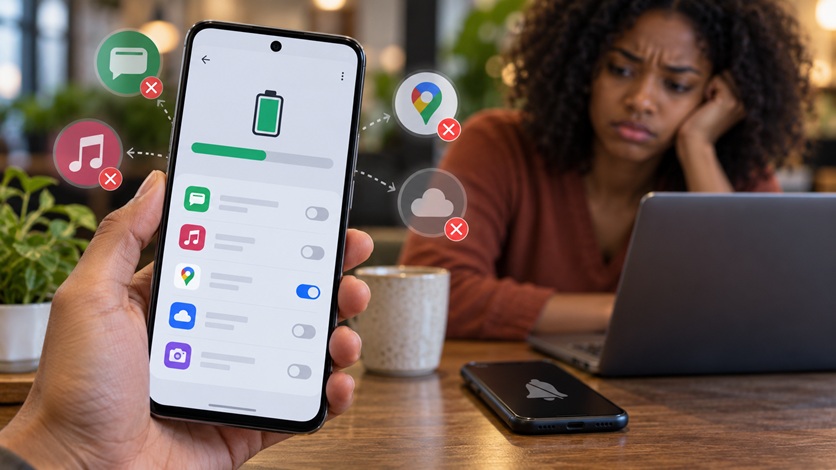
Xiaomi-based phones can also apply aggressive battery controls.
Check:
Settings → Apps → Manage Apps → Select App → Battery Saver
or search Settings for:
Battery Saver
Look for options that reduce or remove background restrictions for the specific app.
Again, avoid removing battery restrictions from every application.
Focus on the apps that genuinely need continuous background activity.
11. Check Auto-Start Settings
Some Android manufacturers include an Auto-start feature.
If an app is not allowed to start automatically, it may fail to restart after:
- Rebooting the phone
- Being closed
- Battery optimization
- System cleanup
Search your phone’s Settings for:
Auto-start
or:
Autostart Apps
Allow important applications when necessary.
This can be particularly useful for:
- Messaging apps
- Security apps
- VPNs
- Fitness trackers
- Work apps
12. Do Not Swipe Away Important Apps Constantly
Many users constantly remove every app from the Recent Apps screen.
On some phones, repeatedly swiping an application away can cause it to stop background activity until it is opened again.
If you want an app to remain active, avoid constantly clearing it from Recents.
Some Android phones also let you lock an app in Recents.
Look for a:
Lock
or:
Padlock icon
after opening the Recent Apps screen.
This manufacturer-specific feature may help prevent aggressive cleanup tools from closing an important application.
13. Avoid Using “Clear All” Every Few Minutes
Some people believe repeatedly tapping:
Clear All
makes Android faster.
Modern Android already manages memory automatically.
Continuously closing applications can sometimes have the opposite effect because apps must completely reload the next time you open them.
Use Clear All when necessary, but do not treat it as something you must do every few minutes.
14. Disable Third-Party Battery Saver Apps
If you installed applications claiming to:
- Boost RAM
- Save battery
- Cool the phone
- Kill background processes
- Clean memory
they may be responsible for closing your important apps.
Temporarily uninstall these applications and test the phone again.
Android already includes built-in power management.
Adding another aggressive battery optimizer may cause unnecessary restrictions.
15. Check Notification Permissions
Sometimes the app is still running correctly but its notifications have been disabled.
That can make you think Android killed it.
Go to:
Settings → Apps → Select App → Notifications
Make sure notifications are enabled.
Check individual notification categories as well.
For example, WhatsApp may have different categories for:
- Messages
- Groups
- Calls
If notifications are disabled, the app can be working normally while you remain unaware of new activity.
16. Check “Pause App Activity If Unused”
Modern Android versions can restrict apps that have not been used for some time.
Depending on your phone, go to:
Settings → Apps → Select App
Look for an option similar to:
Pause App Activity If Unused
or:
Remove Permissions If App Isn’t Used
If an application is essential even when you do not open it often, review this setting.
Android’s standby system becomes stricter for applications that users rarely interact with.
17. Keep the App Updated
Background problems are not always caused by Android.
The app itself may contain a bug.
Open:
Google Play Store → Profile → Manage Apps & Device
Update the affected application.
Also install available Android system updates.
An app that was not designed correctly for newer Android background-execution rules may behave unpredictably.
18. Restart the Phone After Changing Settings
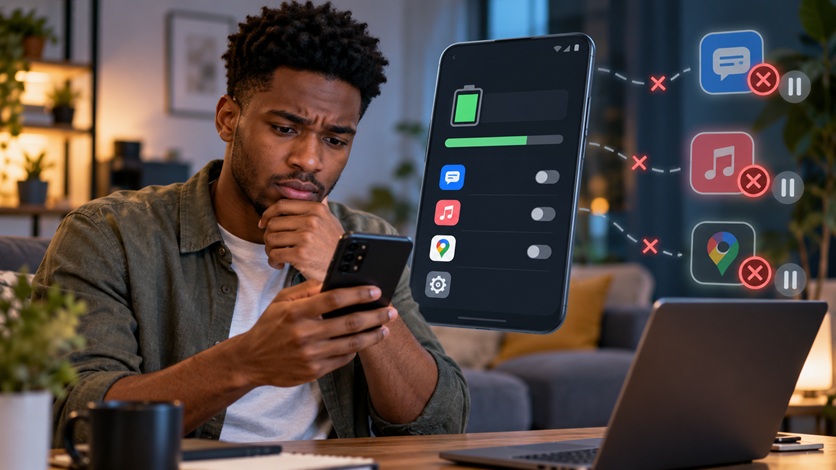
After changing background permissions:
Restart the phone.
Then test the app again.
For example:
- Open WhatsApp.
- Lock your phone.
- Ask someone to send you a message.
- Wait.
- Check whether the notification arrives without opening WhatsApp.
For a music application:
- Start playing music.
- Turn off the screen.
- Leave it for several minutes.
- Check whether playback continues.
Test the actual behaviour instead of assuming the setting worked.
19. Check Whether Power Saving Automatically Turns On
Some phones automatically activate Battery Saver at a certain percentage.
For example:
Your phone behaves normally at 60%.
But notifications become delayed at 15%.
That may happen because Battery Saver automatically activates when the battery becomes low.
Google allows Android users to configure Battery Saver schedules.
Check:
Settings → Battery → Battery Saver
Review any automatic schedule.
20. Do Not Give Every App Unlimited Background Access
The solution is not to allow everything to run continuously.
Too many unrestricted applications can cause:
- Faster battery drain
- Higher mobile-data consumption
- More background processing
- Increased heat
- Reduced standby time
Instead, divide your apps into two groups.
Apps that may need background access
Examples:
- Important email
- VPN
- Security software
- Fitness tracking
- Work communication
- Navigation when actively needed
Apps that usually do not need constant background access
Examples:
- Games
- Shopping apps
- Occasional photo editors
- Apps you rarely use
Keep the exceptions small.
Why Android Became More Aggressive About Background Apps
Older Android phones sometimes allowed applications to remain active much more freely.
This created problems.
Poorly designed applications could:
- Drain battery
- Use mobile data
- Keep the processor awake
- Continuously access services
Modern Android includes systems such as:
- Doze
- App Standby
- Battery optimization
- Background execution limits
Android also places apps into standby categories depending partly on how frequently they are used. Less-active applications can face progressively stronger limits.
The goal is not simply to close apps.
The goal is to extend battery life while still allowing important work to happen.
Quick Fix: App Notifications Arrive Only When I Open It
If messages or emails appear only after opening the application, check these first:
- Notifications are enabled.
- Background data is allowed.
- Battery usage is not set to Restricted.
- Battery Saver is not interfering.
- Data Saver allows the app if necessary.
- The app is not in Sleeping or Deep Sleeping Apps.
- Auto-start is enabled where required.
- The app is updated.
- Restart the phone.
This solves many background-notification problems.
Quick Fix: Music Stops When the Screen Turns Off
Check:
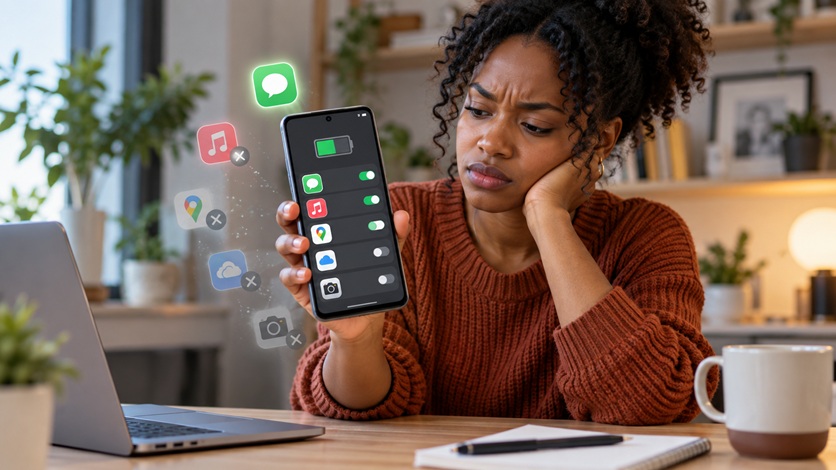
App Battery Setting → Unrestricted
Then check:
Battery Saver
and:
Background Data
If you use Samsung, make sure the music app is not inside Deep Sleeping Apps.
Deep-sleeping Samsung apps cannot perform background activity and only work when opened.
Quick Fix: VPN Keeps Disconnecting
VPN applications often need continuous background activity.
Check:
- Battery optimization
- Unrestricted battery access
- Background data
- Data Saver exceptions
- Power-saving mode
- Auto-start where available
Android’s standby documentation identifies VPN apps among categories that can qualify for exemptions from some restricted standby behaviour.
Quick Fix: Fitness App Stops Tracking
Fitness and location apps may need:
- Background battery access
- Physical activity permission
- Location permission
- Background location permission where appropriate
Do not simply give every permission automatically.
Grant only the permissions necessary for the feature you actually use.
When the App Itself Is the Problem
If all other applications work properly but one app refuses to remain active even after:
- Removing battery restrictions
- Allowing background data
- Enabling notifications
- Updating the app
the problem may be with the app.
Try:
Clear Cache → Restart → Update → Reinstall
If the problem remains, contact the developer.
Step-by-Step Action Plan
If Android keeps killing an important app, follow this order:
Step 1
Restart the phone.
Step 2
Go to:
Settings → Apps → App Name → Battery
Remove unnecessary restrictions.
Step 3
Check:
Settings → Battery → Battery Saver
Temporarily disable it and test.
Step 4
Allow the app to use background data.
Step 5
Check Data Saver exceptions.
Step 6
Check manufacturer-specific settings such as:
- Sleeping apps
- Deep sleeping apps
- Auto-start
- App launch
- Power management
Step 7
Make sure notifications are enabled.
Step 8
Update the app and Android.
Step 9
Remove third-party RAM cleaners or battery savers.
Step 10
Restart and test the app with the screen off.
Do You Need to Factory Reset?
Usually not.
Background app problems are normally caused by:
- Battery restrictions
- Data restrictions
- Manufacturer optimization
- App configuration
- Notification permissions
A factory reset should not be your first response.
Try the targeted settings in this guide first.
Conclusion
Android’s background restrictions exist for a good reason.
They help conserve battery, reduce unnecessary internet activity and prevent poorly behaved applications from consuming resources continuously.
However, sometimes Android becomes too aggressive and restricts apps you genuinely need.
If your messages arrive late, music stops, VPN disconnects or important apps fail to sync, start by checking:
Battery restrictions
Background data
Battery Saver
Data Saver
Sleeping apps
Auto-start
and:
Notification permissions
The best solution is not to disable every Android battery-saving feature.
Instead:
Allow important apps to run freely and let Android restrict the apps that do not need constant background access.
At Cyberhub ICT, we recommend solving the specific problem rather than turning off every optimization feature on the phone.
That gives you the best balance between:
Reliable apps + Good battery life.
Related Cyberhub ICT Guides
You can also read:
Android Phone Problems: A Step-by-Step Troubleshooting Guide Before You Reset
How to Fix Android Apps That Close Immediately After Opening
Why Does My Android Phone Say Storage Full After Deleting Files?
How to Make Your Android Phone Faster Without Buying a New Phone
These articles can link together as part of your Android Troubleshooting topic cluster.
About Cyberhub ICT
Cyberhub ICT Center provides ICT training and technology services including Internet & Cyber Security, Web Design & Blogging, Digital Marketing, Desktop Publishing, Graphics Design, Social Media Management, Content Creation and Forex Trading Training.
For practical Android tutorials, cybersecurity awareness and digital technology guides, follow Cyberhub ICT.
Website: cyberhubict.online
Email: cyberhubict@gmail.com
Phone: 08061601662
Frequently Asked Questions
Why does Android keep closing apps in the background?
Android limits background activity to conserve battery and system resources. Less frequently used apps can face stronger limits on background jobs, alarms and internet access.
How do I stop Android from killing a specific app?
Go to the app’s battery settings and look for an option such as Unrestricted, then review Battery Saver, background-data settings and any manufacturer-specific sleeping-app controls.
Why do WhatsApp notifications arrive only when I open WhatsApp?
Possible causes include background-data restrictions, battery optimization, Battery Saver, disabled notifications or manufacturer-specific sleeping-app settings.
Does Battery Saver stop apps running in the background?
It can. Google says Battery Saver limits or turns off some background activity and can cause delays in apps and network features.
What are Deep Sleeping Apps on Samsung?
Samsung says deep-sleeping apps do not run in the background and work only when you open them.
Should I put WhatsApp in Samsung’s Never Sleeping Apps?
If WhatsApp notifications or background activity are being affected by Samsung’s sleeping-app system, adding it to Never Sleeping Apps may help. Be aware that allowing more apps to remain active can increase battery usage.
Should I disable all battery optimization?
No. Battery optimization helps protect battery life. Exempt only apps that genuinely require reliable background activity.
Do RAM booster apps help?
Usually, Android’s built-in memory management is sufficient. Aggressive third-party cleaners can sometimes contribute to unwanted background-app closures.
