

Mobile data can disappear surprisingly fast.
You may buy a data bundle in the morning and wonder by evening:
“Where did all my data go?”
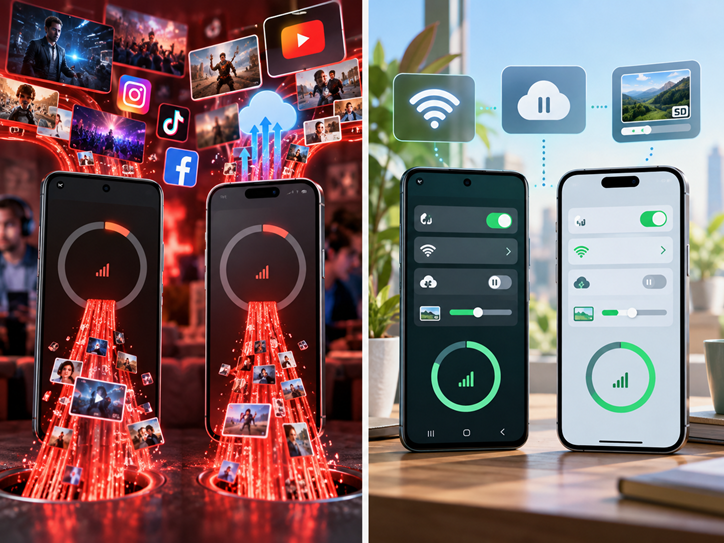
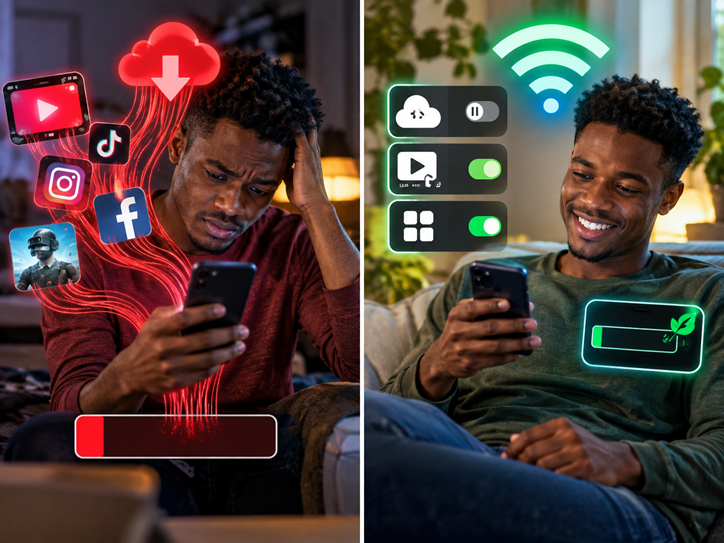
The truth is that many smartphones continue using internet data even when you are not actively browsing.
Apps may:
- Refresh in the background
- Download updates
- Sync photos and videos
- Stream high-quality content
- Automatically play videos
- Upload backups
- Download media from messaging apps
- Use mobile data for cloud services
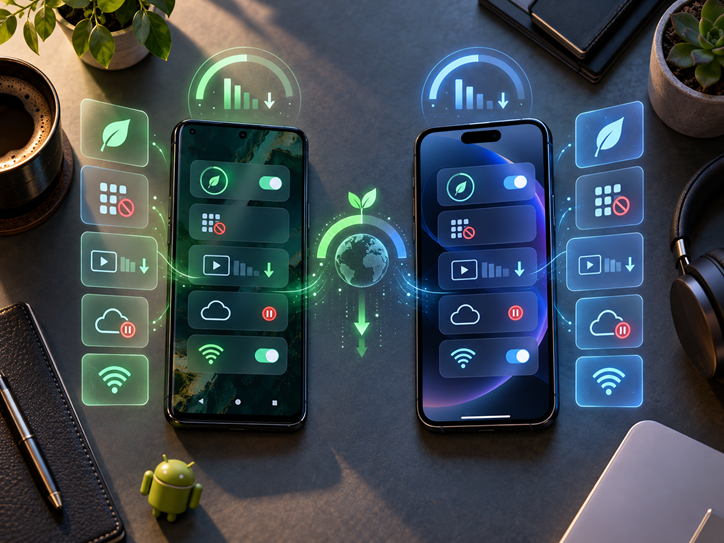
The good news is that both Android and iPhone provide several settings that can help reduce unnecessary data consumption.
In this Cyberhub ICT guide, we will look at practical ways to reduce mobile data usage without making your smartphone difficult to use.
1. Turn On Data Saver on Android
One of the easiest ways to reduce data usage on Android is to enable Data Saver.
On many Android phones, go to:
Settings → Network & Internet → Data Saver
Then turn it on.
Google explains that Data Saver limits most apps from using mobile data in the background. Apps you are actively using can still access mobile data normally.
Depending on your phone brand, the setting may also appear under:
Settings → Connections → Data Usage
or:
Settings → SIM & Network
Android manufacturers sometimes organize settings differently.
What Data Saver does
It can reduce unnecessary background internet activity from apps you are not actively using.
You can also allow important apps to use unrestricted data if necessary.
For example, you may want your:
- Banking app
- Work communication apps
to continue receiving important notifications.
2. Turn On Low Data Mode on iPhone
iPhone users also have a built-in data-saving option called Low Data Mode.
Go to:
Settings → Cellular → Cellular Data Options → Data Mode → Low Data Mode
Apple says Low Data Mode reduces network usage by limiting background activity, automatic downloads and some updates.
When Low Data Mode is enabled, iPhone may:
- Reduce background app activity
- Pause automatic downloads
- Reduce streaming quality
- Pause certain iCloud updates
- Limit automatic App Store activity
This can be especially useful when your remaining data is low.
3. Check Which Apps Are Consuming the Most Data
Before trying to save data, find out where it is going.
On Android
Go to:
Settings → Network & Internet → SIMs/Data Usage
The exact location depends on the phone.
You should see how much data individual apps have used.
On iPhone
Go to:
Settings → Cellular
Scroll down.
Your iPhone shows how much cellular data individual apps have used. Apple also allows you to disable cellular data for specific apps entirely.
Look for apps consuming unusually large amounts.
Common heavy data users include:
- YouTube
- TikTok
- Netflix
- Chrome
- Google Photos
- Cloud storage apps
Once you know the biggest users, you can target those apps first.
4. Reduce Video Quality
Video streaming is one of the fastest ways to consume mobile data.
Watching videos in:
- 1080p
- 1440p
- 4K
can consume far more data than lower-quality video.
If you are using mobile data, consider watching at:
- 360p
- 480p
- 720p
depending on your needs.
YouTube provides a Data saver quality option that lowers video quality to reduce data usage.
In the YouTube app, go to:
Profile → Settings → Video quality preferences
Under mobile networks, choose:
Data saver
This simple change can make a major difference.
5. Stop Automatic App Updates Over Mobile Data
App updates can sometimes be hundreds of megabytes or even several gigabytes.
Allowing apps to update automatically through mobile data can quickly drain a bundle.
Android
Open:
Google Play Store → Profile → Settings → Network Preferences → Auto-update apps
Choose:
Over Wi-Fi only
iPhone
Low Data Mode can reduce automatic App Store downloads and updates.
You can also review App Store automatic-download settings and avoid allowing large downloads through mobile data.
Whenever possible:
Update apps through Wi-Fi.
6. Stop Automatic Video Downloads
Messaging and social-media apps can automatically download media.
This may include:
- Photos
- Videos
- Voice notes
- Documents
- GIFs
If you belong to several WhatsApp groups, this can consume significant data.
Check the media download settings in apps such as:
- Telegram
- Messenger
Choose Wi-Fi for large video downloads where possible.
Do not allow every video sent to a group chat to download automatically.
7. Use Wi-Fi for Large Downloads
Try to reserve mobile data for lighter tasks such as:
- Messages
- Small web pages
- Banking
- Basic social-media browsing
Use Wi-Fi for:
- Movies
- Large games
- Software updates
- Operating-system updates
- Large video uploads
- Cloud backups
- Large app downloads
This simple habit can dramatically reduce monthly data usage.
8. Restrict Background Data on Android
Some Android apps continue downloading information even when you are not using them.
Depending on your phone, you may be able to restrict this.
Go to:
Settings → Apps → Select App → Mobile Data
Look for options such as:
Background data
or:
Allow background data usage
Turn it off for apps that do not need constant internet access.
Google confirms that Android Data Saver can restrict background data for most apps while allowing selected apps unrestricted access.
Be careful with messaging, banking or work apps if you depend on immediate notifications.
9. Turn Off Cellular Data for Specific iPhone Apps
On iPhone, this is very easy.
Go to:
Settings → Cellular
Scroll to the application list.
Turn off cellular data for apps that you only want to use through Wi-Fi.
For example, you might disable cellular access for:
- Netflix
- Cloud storage
- Large games
- Video-editing apps
Apple states that when cellular data is disabled for an app, that app uses Wi-Fi only for internet access.
10. Limit Background App Refresh on iPhone
iPhone apps can check for new content in the background.
You can control this by going to:
Settings → General → Background App Refresh
You can:
- Turn it off completely
- Allow it on Wi-Fi only
- Allow it on Wi-Fi and mobile data
Apple explains that Background App Refresh lets suspended apps check for updates and new content.
If you’re trying to save data, choosing Wi-Fi only can help.
11. Be Careful With 5G Data Settings
5G itself does not automatically waste data.
However, faster internet speeds can make it easier to:
- Stream higher-quality video
- Download larger files
- Use HD video calling
- Consume data more quickly
On supported iPhones, Apple provides different 5G Data Mode settings.
Choosing Allow More Data on 5G can enable higher-quality experiences that use more mobile data. Low Data Mode does the opposite.
If your data plan is limited, review this setting.
12. Reduce Social Media Video Autoplay
Facebook, Instagram, TikTok and similar apps often automatically play videos as you scroll.
If you spend hours browsing, autoplay can consume a large amount of data.
Check each app’s settings for options such as:
- Data Saver
- Cellular Data Use
- Media Quality
- Autoplay
Choose lower-quality playback or Wi-Fi-only options where available.
13. Download Music Over Wi-Fi
Streaming music uses less data than video, but listening for many hours still adds up.
If you regularly listen to the same:
- Albums
- Playlists
- Podcasts
download them while connected to Wi-Fi.
Then listen offline.
This avoids repeatedly streaming the same content through mobile data.
14. Download YouTube Videos on Wi-Fi Where Supported
If offline downloads are available to you, configure them to use Wi-Fi.
YouTube includes a Download over Wi-Fi only option in supported environments.
Downloading once through Wi-Fi may be better than streaming the same video several times with mobile data.
15. Reduce Cloud Photo Uploads
Automatic photo backup is extremely useful.
But uploading hundreds of high-resolution photos and videos through mobile data can consume a large bundle.
Apps such as:
- Google Photos
- iCloud Photos
- OneDrive
- Dropbox
may be configured to perform backups through Wi-Fi only.
This is particularly important if you record lots of videos.
A few large videos can consume far more data than hundreds of text messages.
16. Avoid Using Your Phone as a Hotspot Unnecessarily
Personal Hotspot allows other devices to use your phone’s internet connection.
This can consume data much faster because a connected laptop may:
- Download system updates
- Sync cloud files
- Update software
- Stream high-resolution video
Android’s own guidance notes that tethering can contribute to heavy network use.
If you must use a hotspot:
- Monitor connected devices
- Avoid large downloads
- Turn it off when finished
- Prevent unauthorized users from connecting
17. Set Metered Wi-Fi When Necessary
Sometimes the Wi-Fi you are using is actually coming from:
- Another phone’s hotspot
- A capped router
- A limited MiFi bundle
Android allows supported Wi-Fi networks to be marked as metered.
This tells Android that the connection has limited data and gives the operating system more control over downloads and background use.
This is very useful when connecting your phone to another person’s hotspot.
18. Avoid Unnecessary Cloud Synchronization
Many apps automatically synchronize files.
Examples include:
- Email attachments
- Contacts
- Documents
- Photos
- Videos
- App data
Review sync settings and disable services you do not need constantly running.
Do not turn off backups blindly, though.
Your goal is to reduce unnecessary mobile-data use without risking important information.
19. Use Mobile Versions of Websites
Some websites provide lighter mobile versions.
Mobile-friendly pages usually require fewer resources than full desktop websites.
Also avoid using Desktop Site in your browser unless necessary.
Desktop pages can contain larger images, more scripts and heavier media.
20. Disable Automatic Video Uploads
Creators who regularly post videos should be especially careful.
Uploading one high-resolution video to:
- TikTok
- YouTube
may consume hundreds of megabytes or more depending on the file.
Where possible:
Edit your video offline and upload through Wi-Fi.
21. Monitor Your Data Regularly
Do not wait until your network sends:
“You have exhausted your data bundle.”
Check your usage frequently.
Most mobile operators provide:
- Mobile apps
- USSD codes
- SMS balance checks
Your smartphone also provides built-in usage statistics.
Checking regularly helps you identify unusual consumption early.
22. Remove Apps You No Longer Use
Unused apps may still:
- Send notifications
- Connect to servers
- Perform background tasks
Modern Android versions can automatically restrict unused apps by stopping background activity and notifications after long periods of inactivity.
Still, if you no longer need an app, uninstalling it may be the simplest solution.
23. Be Careful With Automatic Cloud Backups
Backing up your phone is important.
But large backups should ideally happen on Wi-Fi.
This includes:
- WhatsApp backups
- Photos
- Videos
- Device backups
Review each app’s backup settings.
Choose Wi-Fi when the option is available.
24. Turn Off Mobile Data When You Don’t Need It
This is the simplest solution.
If you’re:
- Sleeping
- Working offline
- Watching downloaded content
- Connected to trusted Wi-Fi
you may not need cellular data active.
Turning it off prevents apps from quietly consuming mobile data.
Just remember that some internet-based notifications may not arrive until you reconnect.
What Consumes the Most Mobile Data?
Not all smartphone activities consume the same amount of data.
Activities that typically use more data include:
Video streaming
Especially HD and 4K content.
Video calls
Long video calls can use significant data.
Social-media videos
Constantly scrolling through short videos can consume more data than many users realize.
Large downloads
Games and system updates can be several gigabytes.
Hotspot usage
A laptop connected to your phone may consume data very quickly.
Cloud backups
Uploading photos and videos can consume large amounts of data.
Music streaming
Usually lighter than video, but long listening sessions add up.
Why Does My Data Finish Even When I’m Not Using My Phone?
Apps can continue accessing the internet in the background.
Examples include:
- Email syncing
- Social-media refreshing
- Photo backups
- Messaging apps
- Cloud storage
- App updates
This is why features such as Android Data Saver and iPhone Low Data Mode can be useful.
Which Is Better for Saving Data: Android or iPhone?
Both provide strong data-management tools.
Android offers features such as:
- Data Saver
- Per-app data controls
- Background restrictions
- Metered Wi-Fi
iPhone provides:
- Low Data Mode
- Per-app cellular controls
- Background App Refresh settings
- Data Mode controls
The biggest difference is not necessarily the operating system.
It is how the user configures the phone.

Quick Mobile Data Saving Checklist
If your data finishes too quickly, start with these steps:
Turn on Android Data Saver or iPhone Low Data Mode.
Check which apps consume the most data.
Use YouTube Data Saver.
Disable automatic app updates over mobile data.
Reduce automatic video downloads.
Use Wi-Fi for cloud backups.
Restrict unnecessary background activity.
Disable cellular data for heavy apps.
Avoid unnecessary hotspot usage.
Upload large videos through Wi-Fi.
Monitor your data balance regularly.
Conclusion
Mobile data is valuable, and your smartphone should not waste it unnecessarily.
You do not have to stop using YouTube, WhatsApp, Instagram or other useful applications.
Instead, learn how your phone uses data and control the activities that consume the most.
Start by:
- Activating data-saving features
- Reducing video quality
- Restricting background usage
- Using Wi-Fi for large downloads
- Controlling automatic updates
- Monitoring your consumption
A few changes to your settings can help your data bundle last much longer.
At Cyberhub ICT, we believe technology becomes more useful when people understand how to control it.
Use your data wisely. Control your apps. Get more value from every megabyte.
About Cyberhub ICT
Cyberhub ICT Center provides ICT training and technology services including:
- Desktop Publishing
- Digital Marketing
- Web Design & Blogging
- Internet & Cyber Security
- Graphics Design
- Social Media Management
- Content Creation
- Forex Trading Training
For more smartphone tips, cybersecurity guides and practical technology tutorials, follow Cyberhub ICT.
Website: cyberhubict.online
Email: cyberhubict@gmail.com
Phone: 08061601662
Frequently Asked Questions
Why does my mobile data finish so quickly?
Heavy video streaming, background apps, automatic updates, cloud backups and social-media autoplay are common causes.
Does Android Data Saver really work?
Yes. Google says Data Saver limits most apps from using mobile data in the background while allowing active apps to continue using it.
Does iPhone have a Data Saver?
Yes. Apple calls it Low Data Mode. It reduces background network use, automatic downloads and other data-intensive activities.
Does 5G use more data than 4G?
5G does not automatically consume more data for the same file, but its higher speed can encourage higher-quality streaming and larger downloads. Some iPhone 5G modes can also enable higher-quality services that use more data.
Does watching YouTube consume a lot of data?
It can, especially at high resolutions. YouTube provides a Data Saver video-quality option to reduce consumption.
Can I stop individual iPhone apps from using mobile data?
Yes. Go to Settings → Cellular, then switch off cellular access for any app you want to restrict.
Should I leave Background App Refresh on?
That depends on your needs. If you want to reduce mobile data usage, you can limit Background App Refresh to Wi-Fi or turn it off for unnecessary apps.
