
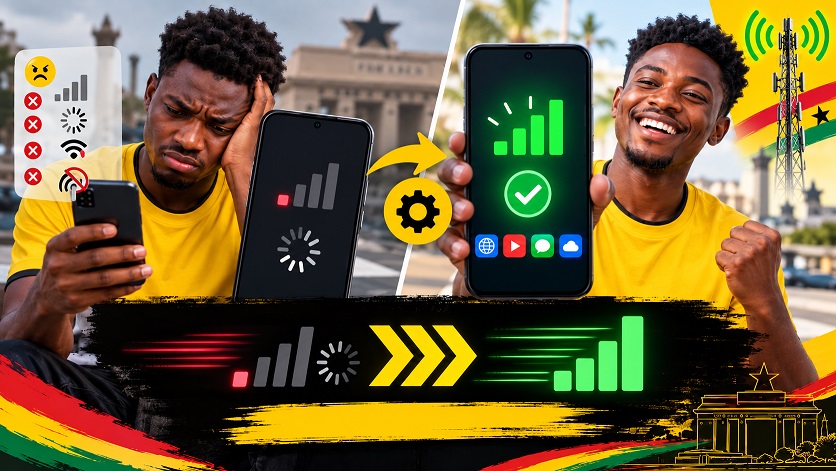
How to Fix Slow MTN Internet on an Android Phone in Ghana
Is your MTN internet unusually slow? Perhaps WhatsApp messages are taking too long to send, YouTube videos keep buffering, or websites refuse to open.
A slow internet connection does not always mean that your phone is damaged. The problem may come from poor network coverage, an exhausted data bundle, incorrect phone settings, background applications or temporary network congestion.
This guide explains the simple steps you can follow to improve your MTN internet connection on an Android phone in Ghana.
Important: The names of settings may differ slightly on Samsung, Tecno, Infinix, Itel, Redmi and other Android phones.
How to Know That Your Internet Connection Is Slow
You may have an internet connection problem if:
1). Web pages take too long to open.
2). YouTube videos buffer repeatedly.
3). WhatsApp messages remain on the clock symbol.
4). Applications refuse to download or update.
5). Downloads remain at 0%.
6). Your phone shows signal bars but websites do not open
7). Your network regularly changes between 4G, 3G, H+ or E.
8). Google identifies stalled downloads, websites that do not load and Google Play remaining on “Loading” as common signs of a connection problem. Android Help

Screenshot showing the mobile-network symbols—4G, 3G, H+ and E.
What Do 4G, 3G, H+ and E Mean?
These symbols normally appear beside the signal bars at the top of your phone.
4G or LTE: Usually provides a faster connection for video streaming, downloads and browsing.
3G: Slower than 4G but may still handle ordinary browsing and messaging.
H or H+: A form of 3G connection that can support light browsing.
E: A very slow connection. Videos and large websites may struggle to load.
No data symbol: Your phone may not have an active mobile-data connection.
The number of signal bars also matters. One signal bar will generally provide a less stable connection than four or five bars.
1. Confirm That You Have an Active Data Bundle
- Before changing your phone settings, confirm that your data has not finished.
- A phone can display strong MTN signal bars even when there is no active data bundle. Open the myMTN application or use an official MTN service channel to check your remaining data.
- If your bundle is finished, purchase another bundle and try opening a simple website.
- Do not repeatedly buy new bundles until you confirm that the original bundle has actually been exhausted.

Screenshot of the data-balance section inside the myMTN app
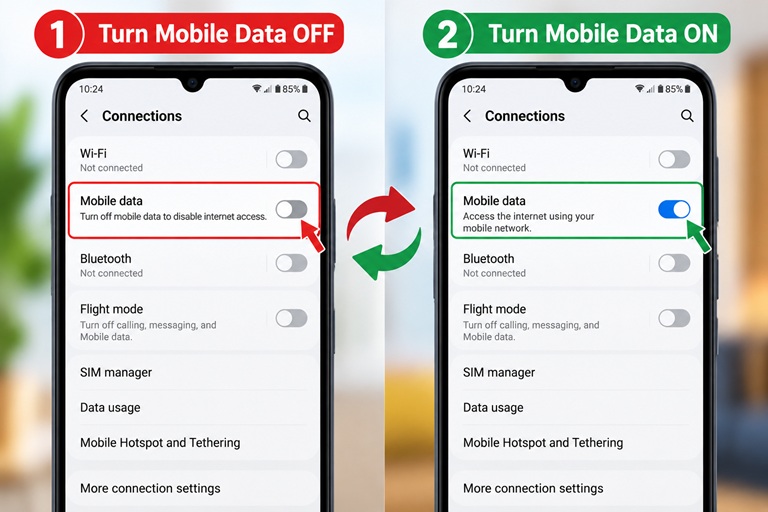
2. Turn Mobile Data Off and On
- Refreshing the mobile-data connection can resolve a temporary connection problem.
- Swipe down from the top of your screen.
- Find the Mobile Data icon.
- Tap it to switch mobile data off.
- Wait approximately 10 seconds.
- Tap it again to switch mobile data on.
- Open your browser and test the connection.
- Make sure Wi-Fi is switched off during the test. Otherwise, your phone may continue using a Wi-Fi connection instead of MTN mobile data.
3. Use Airplane Mode to Reconnect to the Network
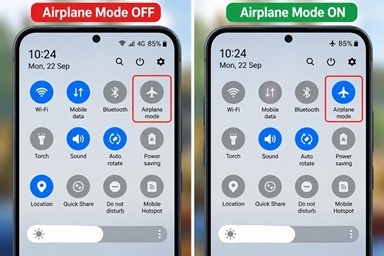
- Airplane mode temporarily disconnects your phone from the mobile network.
- Swipe down from the top of the screen.
- Tap Airplane Mode or Flight Mode.
- Wait for approximately 10 seconds.
- Turn airplane mode off.
- Wait for the MTN signal and data symbol to return.
- Test your internet connection.
- This is one of the troubleshooting methods recommended by Android. Android Help
Suggested image: Android quick-settings panel with Airplane Mode highlighted.
4. Restart Your Phone
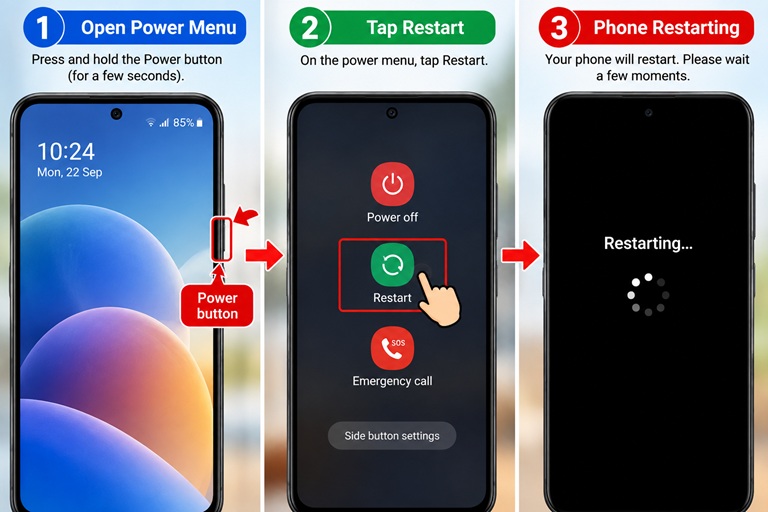
- Restarting closes temporary processes and allows the phone to reconnect to the mobile network.
- Press and hold the power button.
- Select Restart or Reboot.
- Wait for the phone to start completely.
- Turn on mobile data.
- Test WhatsApp, Chrome or another application.
- Do not select Factory Reset. A factory reset is different from restarting and may erase personal information.
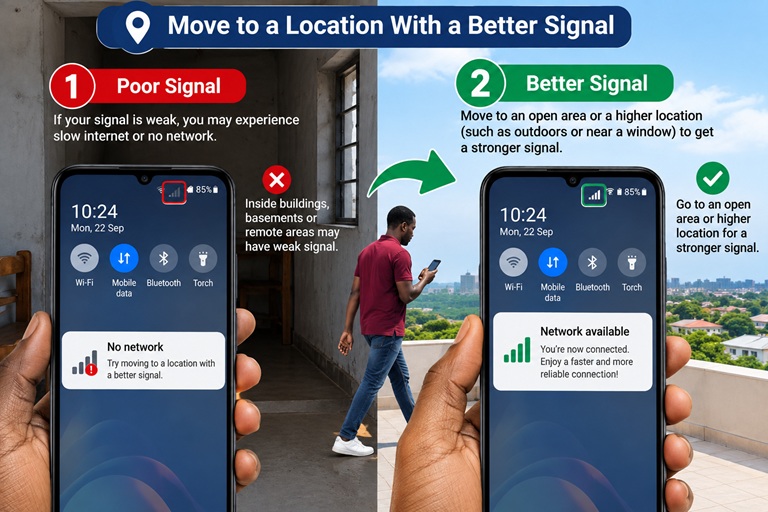
5. Move to a Location With a Better Signal
- Walls, hills, weather conditions, building materials and your distance from a network site may affect reception.
- Try the following:
- Move closer to a window.
- Leave an enclosed room temporarily.
- Go to a more open area.
- Move to another part of the building.
- Check whether another MTN user nearby has the same problem.
- If several people in the same area are affected, the problem may be related to local coverage or temporary network congestion rather than your phone.
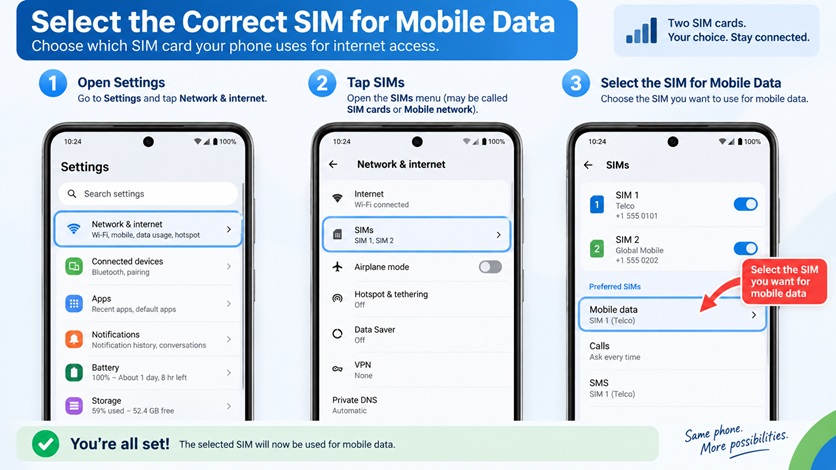
6. Select the Correct SIM for Mobile Data
Many Android phones in Ghana use two SIM cards. Your phone may be trying to obtain data from the wrong SIM.
- Open Settings.
- Select SIM cards, SIM manager or Mobile network.
- Find Mobile Data or Preferred SIM for Data.
- Select the SIM containing your active MTN bundle.
- Test the connection again.
- The wording will depend on the phone model.
- Suggested image: A dual-SIM settings screen with the preferred data SIM highlighted.
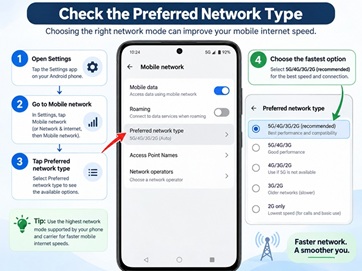
7. Check the Preferred Network Type
Your phone may have been restricted to a slower network.
- Open Settings.
- Select Network & Internet, Connections or SIM Cards and Mobile Networks.
- Select your MTN SIM.
- Tap Preferred Network Type or Network Mode.
- Choose an automatic option such as 4G/3G/2G Auto or LTE/3G/2G Auto.
- Avoid choosing “4G only” unless you understand the effect. Automatic selection allows the phone to use another available network when 4G coverage becomes weak.
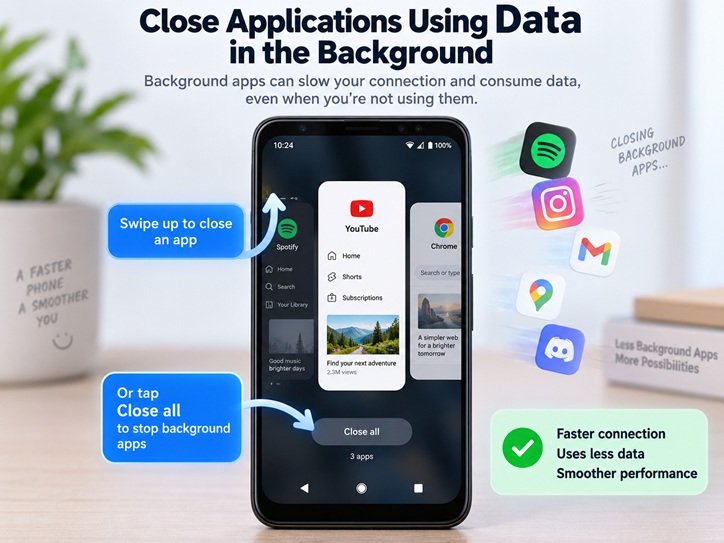
8. Close Applications Using Data in the Background
Applications can download updates, upload photographs or play media without being visible on the screen.
Check whether your phone is:
- Updating applications through Google Play.
- Uploading videos to Google Photos.
- Downloading WhatsApp media.
- Installing a system update.
- Using a VPN application.
- Sharing data through a mobile hotspot.
- Pause unnecessary downloads and switch off your hotspot if nobody should be using it.
You can also open:
- Settings → Network & Internet → Data Usage
- The exact menu name may differ by phone.
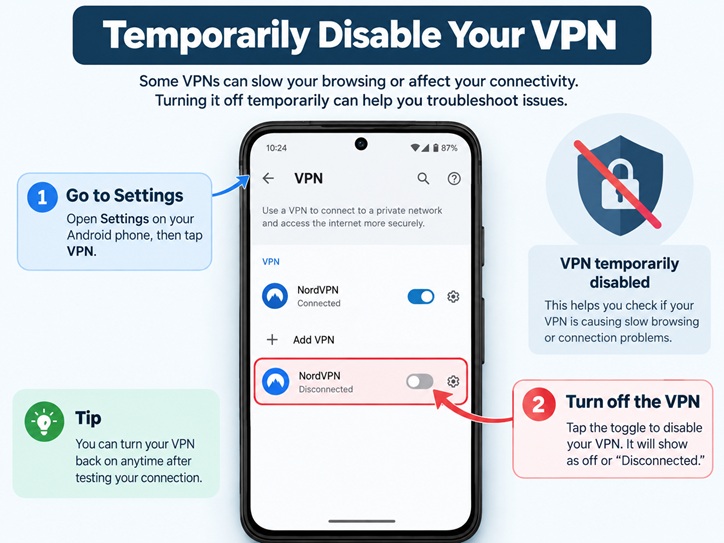
9. Temporarily Disable Your VPN
A VPN sends your internet connection through another server. A slow or overloaded VPN server can reduce browsing speed.
- Open the VPN application.
- Disconnect from the VPN.
- Test your MTN connection.
- If the connection improves, select a better VPN server or leave the VPN disconnected when it is unnecessary.
- Only use reputable VPN services. Avoid applications that request unnecessary access to contacts, messages or financial information.
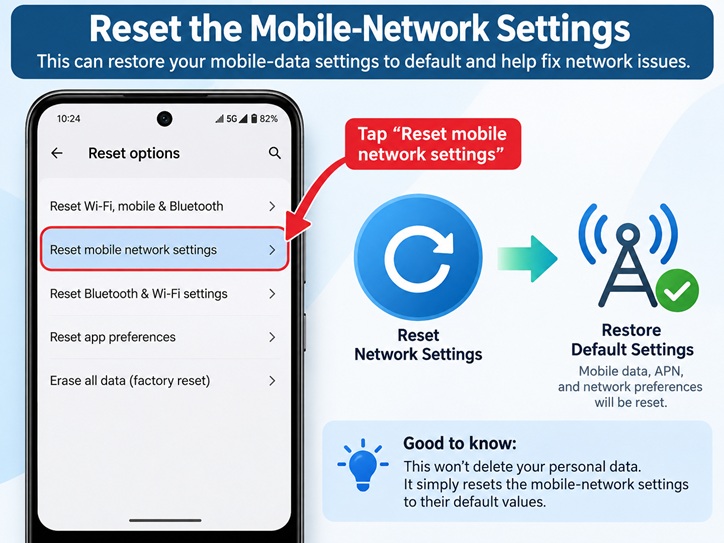
10. Reset the Mobile-Network Settings
Use this step only after trying the simpler solutions.
- Open Settings.
- Search for Reset network settings.
- Select the option covering mobile networks.
- Read the warning carefully.
- Confirm the reset.
- Restart the phone.
A network reset may remove saved Wi-Fi networks, Bluetooth connections and customised network settings. It should not delete your photographs and documents, but the effect varies by device.
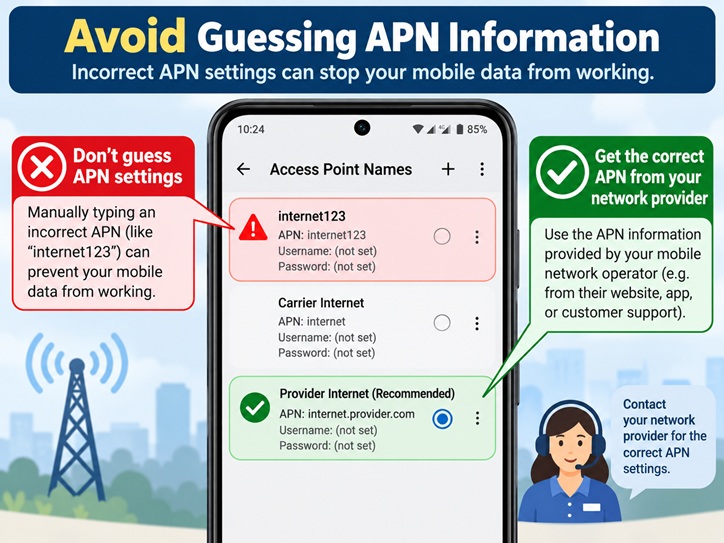
11. Avoid Guessing APN Information
An Access Point Name, commonly called an APN, tells a phone how to connect to a mobile-data service.
Incorrect APN values can prevent the internet from working. Do not copy random APN settings from an unverified social-media post.
If the APN has been changed:
- Open the mobile-network settings.
- Select Access Point Names.
- Open the menu.
- Select Reset to Default, if available.
- Restart the phone.
If default settings do not work, request the correct settings directly from MTN Ghana.
12. Contact MTN Ghana When the Problem Continues
Contact MTN if:
- You have an active bundle but cannot browse.
- Other MTN users in the area have the same problem.
- Your SIM does not show any data symbol.
- The problem continues after restarting and resetting the network.
You suspect a problem with your SIM card.
MTN Ghana currently lists these official support channels:
Toll-free telephone number: 100
WhatsApp: 055 430 0000
Telephone: +233 24 430 0000
Email: customercare.gh@mtn.com
Social media: @MTNGhana and @AskMTNGhana
Confirm these details on the official MTN Ghana contact page before contacting support.
Never give anyone your Mobile Money PIN, one-time password or private account password.
Quick Troubleshooting Checklist
Before contacting customer support, confirm that you have:
i. An active data bundle
ii. Selected the correct SIM for mobile data
iii. Switched mobile data off and on
iv. Used aeroplane mode for 10 seconds
v. Restarted the phone
vi. Moved to an area with better reception
vii. Selected automatic network mode
viii. Paused background downloads
ix. Disconnected unnecessary VPN services
x. Reset the APN to its default setting
Frequently Asked Questions
- Why is my MTN data slow even though I have a 4G signal?
• The network may be congested, your signal may be unstable, or another application may be using data in the background. A 4G symbol does not guarantee the same speed at every time or location. - Will restarting my phone delete my files?
• No. An ordinary restart should not delete your files. However, do not select Factory Reset, because that operation can erase personal information. - Does changing the APN make the internet faster?
• Not necessarily. The purpose of the APN is to establish the correct data connection. Unverified settings may make the connection worse or stop it completely. - Why does WhatsApp work while websites do not open?
• WhatsApp may continue working briefly on a weak connection, while a large website requires more data. The browser, DNS configuration or website itself may also be responsible. - Should I download an “internet booster” application?
• Be careful. Many booster applications cannot improve mobile-network coverage and may display excessive advertisements or request unnecessary permissions.
Learn Practical Internet Skills With Cyberhub ICT
Do you find internet settings, email, file sharing and smartphone features confusing?
Cyberhub ICT provides beginner-friendly practical training that can help you learn tech skills like:
1). Forex Trading
2). Internet and Cybersecurity
3). Network +
4). A +
5). Graphic Design
6). Digital Marketing
7). HTML
8). CSS
9). JAVA Script
10). Blogging
