
Your iPhone contains some of your most valuable information—photos, emails, banking details, passwords, contacts, and personal documents. While Apple devices are known for strong security, no smartphone is completely immune to cyber threats.
Hackers, phishing scams, fake apps, and data breaches continue to evolve, making it essential for every iPhone user to understand basic security practices.
In this guide, we’ll explore the most important iPhone security tips that can help protect your data and privacy in 2026.
Why iPhone Security Matters
A compromised smartphone can expose:
- Banking information
- Email accounts
- Social media profiles
- Business documents
- Personal photos
- Passwords
- Identity information
Good security habits significantly reduce the risk of becoming a victim of cybercrime.
1. Use a Strong Passcode
Many users still rely on simple passcodes such as:
- 123456
- 000000
- Birth dates
These are easy for attackers to guess.
Recommended
Use:
- A six-digit code at minimum
- An alphanumeric password for maximum security
How to Change Your Passcode
- Open Settings
- Face ID & Passcode
- Change Passcode
2. Enable Face ID
Face ID provides an additional layer of security.
Benefits include:
- Secure device access
- App authentication
- Password protection
- Apple Pay verification
Face ID is one of the safest biometric systems available today.
3. Turn On Two-Factor Authentication
Two-Factor Authentication (2FA) protects your Apple ID even if someone discovers your password.
Enable 2FA
- Settings
- Tap Your Name
- Password & Security
- Turn On Two-Factor Authentication
This is one of the most important security settings every user should activate.
4. Keep iOS Updated
Apple regularly releases updates that:
- Fix vulnerabilities
- Improve security
- Patch bugs
- Strengthen privacy protections
Update Your Device
- Settings
- General
- Software Update
Always install updates promptly.
5. Download Apps Only from the App Store
Third-party downloads can expose your device to:
- Malware
- Spyware
- Fake applications
- Data theft
Stick to trusted App Store downloads whenever possible.
Before installing an app:
- Check reviews
- Verify developer information
- Review permissions
6. Review App Permissions Regularly
Some apps request unnecessary access to:
- Contacts
- Photos
- Microphone
- Camera
- Location
Review Permissions
- Settings
- Privacy & Security
Disable access that isn’t necessary.
7. Beware of Phishing Messages
Cybercriminals frequently send fake messages pretending to be:
- Apple
- Banks
- Delivery companies
- Social media platforms
Common warning signs include:
- Urgent language
- Suspicious links
- Requests for passwords
- Requests for verification codes
Never click suspicious links.
8. Enable Find My iPhone
If your device is lost or stolen, Find My iPhone can help.
Features include:
- Device tracking
- Remote locking
- Lost Mode
- Remote data wipe
Enable It
- Settings
- Tap Your Name
- Find My
- Turn On Find My iPhone
9. Use iCloud Keychain
Avoid reusing passwords.
iCloud Keychain helps users:
- Generate strong passwords
- Store credentials securely
- Auto-fill login details
This improves both convenience and security.
10. Avoid Public Wi-Fi Without Protection
Public Wi-Fi networks can expose users to:
- Data interception
- Fake hotspots
- Session hijacking
When possible:
- Use mobile data
- Use a trusted VPN
- Avoid logging into banking apps on public Wi-Fi
11. Enable Security Alerts
Apple can notify users about:
- Unauthorized login attempts
- Suspicious account activity
- Security recommendations
Review notifications promptly.
12. Lock Sensitive Notes
The Notes app allows users to secure private information.
Examples include:
- Business records
- Personal journals
- Password hints
- Financial information
Lock Notes
- Open Notes
- Select a Note
- Tap More Options
- Lock Note
Use Face ID for additional protection.
13. Secure Your Email Account
Your email often controls access to other accounts.
Protect it by:
- Using strong passwords
- Enabling 2FA
- Reviewing login activity
- Avoiding suspicious links
A compromised email account can lead to widespread account theft.
14. Turn Off Automatic Connections
Disable automatic connections to unknown:
- Wi-Fi networks
- Bluetooth devices
- AirDrop requests
This reduces opportunities for unauthorized access.
15. Monitor Privacy Reports
Apple provides privacy reporting features.
Check App Privacy Reports
- Settings
- Privacy & Security
- App Privacy Report
This helps identify apps that access sensitive information excessively.
Common iPhone Security Mistakes
Avoid these mistakes:
❌ Using weak passwords
❌ Ignoring software updates
❌ Clicking suspicious links
❌ Installing unknown apps
❌ Sharing verification codes
❌ Connecting to unsecured Wi-Fi
❌ Disabling Find My iPhone
iPhone Security Checklist
| Security Measure | Recommended |
|---|---|
| Strong Passcode | ✅ |
| Face ID Enabled | ✅ |
| Two-Factor Authentication | ✅ |
| Find My iPhone | ✅ |
| Regular Updates | ✅ |
| App Permission Reviews | ✅ |
| Secure Passwords | ✅ |
| iCloud Keychain | ✅ |
| VPN for Public Wi-Fi | ✅ |
Frequently Asked Questions (FAQ)
Can iPhones get hacked?
Yes. While iPhones are highly secure, phishing attacks, weak passwords, and unsafe browsing habits can still compromise users.
Is Face ID secure?
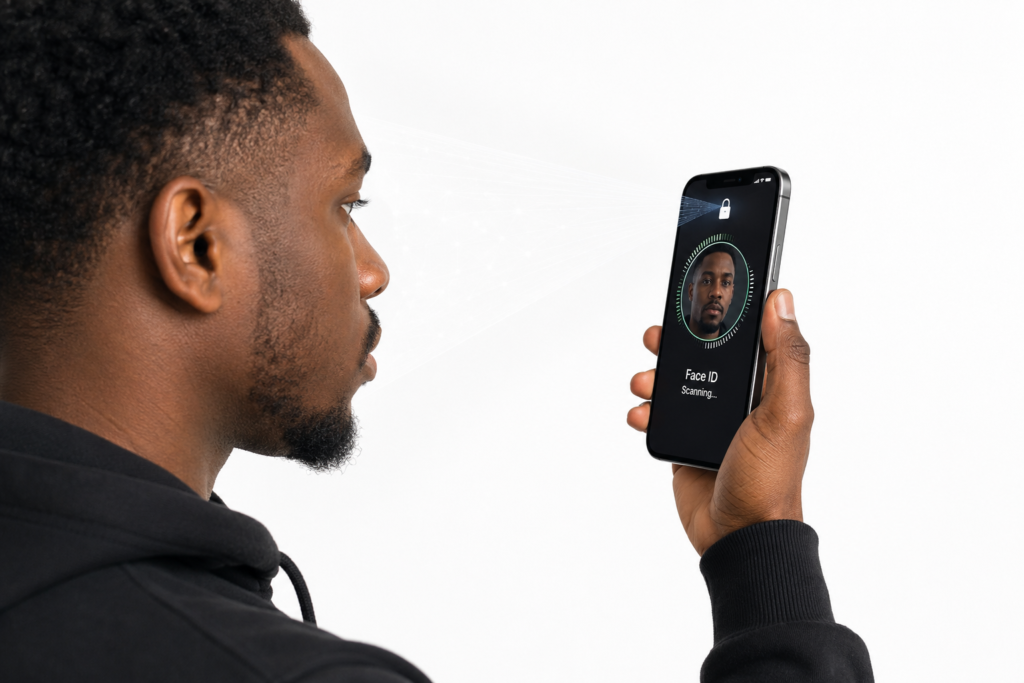
Yes. Face ID is among the most secure biometric authentication systems available.
Should I use a VPN on my iPhone?
A VPN is especially useful when using public Wi-Fi networks.
Is the App Store completely safe?
The App Store is generally safe, but users should still review app permissions and developer reputation.
What should I do if my iPhone is stolen?
Use Find My iPhone immediately to locate, lock, or erase the device remotely.
Conclusion
Protecting your iPhone doesn’t require advanced technical knowledge. Simple practices such as enabling Face ID, using strong passwords, activating Two-Factor Authentication, keeping iOS updated, and being cautious online can dramatically improve your security.
In today’s digital world, cybersecurity is no longer optional—it’s a necessity. Taking a few minutes to secure your iPhone today can save you from major problems tomorrow.
Want more cybersecurity tips, iPhone guides, AI tools, software reviews, and technology tutorials?
