
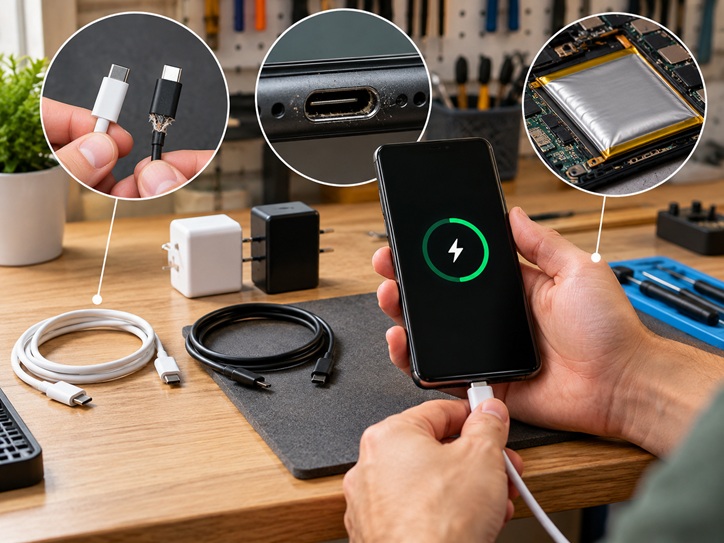
Your Android phone is not charging properly.
Maybe it charges only when you bend the cable.
Maybe charging is extremely slow.
Maybe it connects and disconnects repeatedly.
Or perhaps the phone refuses to charge at all.
At that point, most people start wondering:
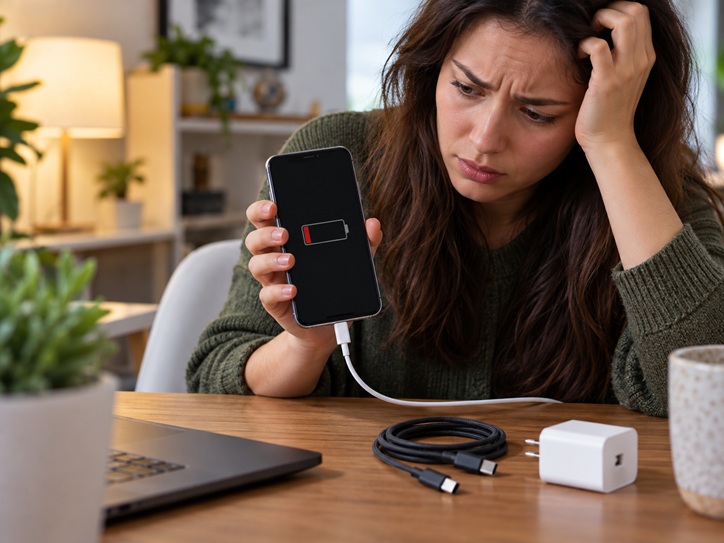
Is the problem the charging cable, the charging port or the battery?
The good news is that you can usually narrow down the cause with a few simple tests before paying for repairs.
Google’s Android troubleshooting guidance recommends checking the charger, cable, wall outlet and charging port before assuming the phone itself has a serious fault.
In this Cyberhub ICT guide, we will show you how to identify the most likely cause step by step.
First: Understand the Three Main Possibilities
Most charging problems fall into one of these categories:
1. Cable or charger problem
The phone may be fine, but the cable or power adapter is damaged, incompatible or too weak.
2. Charging-port problem
Dust, lint, moisture, corrosion or physical damage may prevent proper contact.
3. Battery problem
The battery may be badly degraded, swollen or unable to hold a proper charge.
The smartest approach is to test each possibility in the correct order.
Step 1: Test the Cable First
The charging cable is one of the easiest things to check.
Inspect it carefully.
Look for:
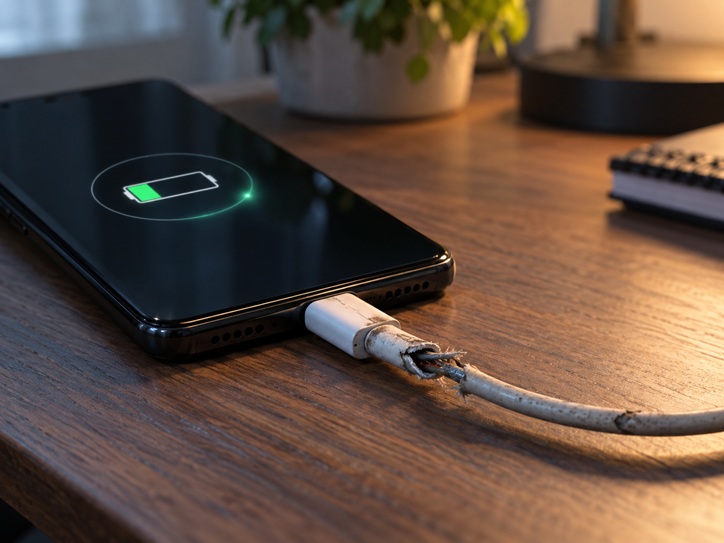
- Frayed insulation
- Bent connectors
- Loose ends
- Exposed wires
- Burn marks
- Corrosion
- A connector that feels loose
Google recommends trying another cable or power adapter when troubleshooting a phone that will not charge.
Samsung also notes that damaged cables and connectors are common causes of charging problems.
Simple cable test
Use the same cable to charge another compatible device.
If the second device also refuses to charge properly, the cable becomes the main suspect.
Then try another known-good cable with your Android phone.
If your phone suddenly charges normally, you have probably found the problem.
Signs the cable is likely faulty
Your cable may be the problem if:
- Charging starts only when the cable is bent
- Charging repeatedly connects and disconnects
- The cable feels loose on several devices
- Another cable works normally
- The cable becomes unusually hot
- You see visible physical damage
Replace damaged charging cables rather than continuing to use them.
Step 2: Test the Power Adapter
Sometimes the cable is fine but the charging brick is not.
Try the charger with another device.
Then try a different compatible charger with your phone.
Google recommends testing both the cable and the power adapter separately.
Samsung also recommends using a compatible power adapter and testing with another charger when wired charging fails.
Wall outlet matters too
Do not forget the socket.
Try another wall outlet.
If possible, avoid testing only from:
- Laptop USB ports
- Weak extension boards
- Old power banks
Samsung notes that charging through a computer may be slower than using a proper power adapter.
Step 3: Check Whether the Charging Port Is Dirty
If the cable and charger seem fine, inspect the charging port.
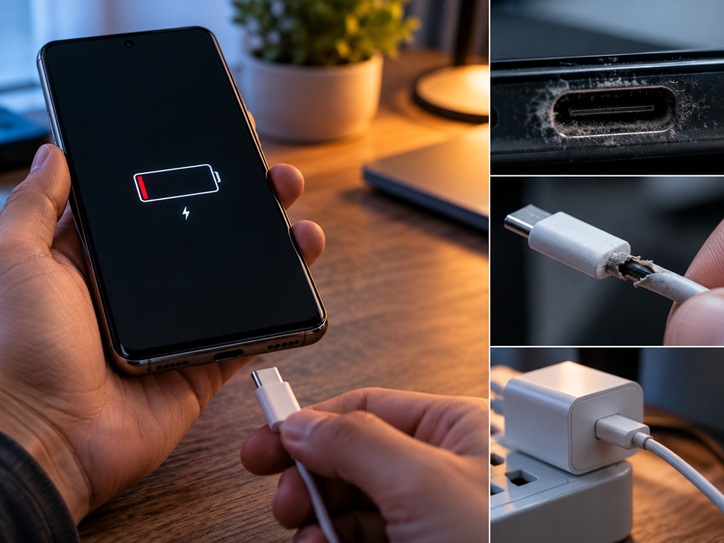
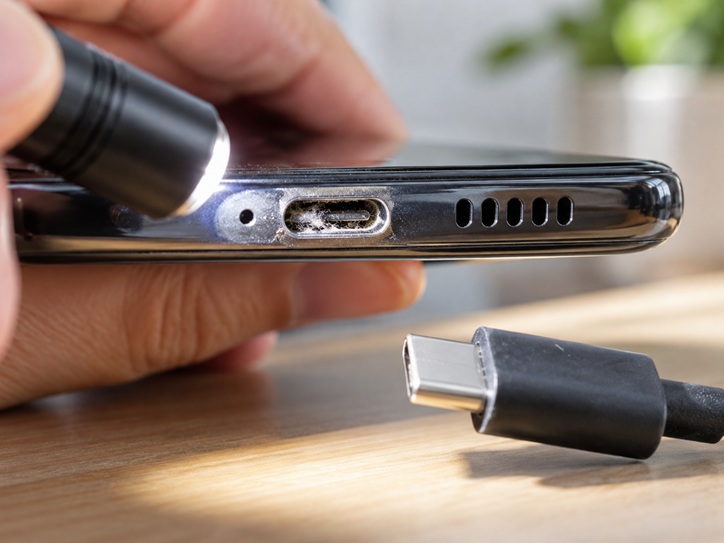
Dust and lint can build up inside a USB-C or Micro-USB port over time.
This can stop the charging connector from sitting properly.
Google specifically recommends checking that there is nothing inside the charging port such as dust or lint.
Samsung gives the same advice and notes that debris can prevent proper contact.
What to look for
Use a flashlight.
Check whether you can see:
- Dust
- Pocket lint
- Dirt
- Corrosion
- Bent internal pins
If there is visible debris, clean carefully.
Samsung recommends gently removing debris with a soft brush and avoiding sharp objects that can damage the port.
Do not use
Avoid:
- Needles
- Knives
- Metal pins
- Screwdrivers
These can damage the connector or cause a short circuit.
Step 4: Check Whether the Cable Feels Loose in the Port
Insert the cable normally.
Do not force it.
Ask yourself:
Does it fit firmly?
If the connector moves excessively from side to side or charging works only when you hold it at a specific angle, the charging port may be damaged.
This is especially likely if:
- Several different cables behave the same way
- The port looks physically worn
- The phone has been dropped while charging
- The cable was repeatedly pulled sideways
A damaged charging port normally requires professional repair.
Step 5: Check for Moisture
Many modern Android phones can detect moisture inside the charging port.
When moisture is detected, charging may be blocked for safety.
Samsung notes that devices can stop charging when moisture is detected because charging a wet port may lead to corrosion or damage.
If you see a moisture warning:
- Disconnect the charger.
- Turn off the phone if necessary.
- Let the port dry naturally in a ventilated area.
- Try charging again later.
Do not force charging while the moisture warning remains.
Step 6: Restart the Phone
A charging problem is not always hardware.
Sometimes Android simply fails to detect the charger correctly because of a temporary software issue.
Restart the phone.
Then connect the charger again.
Samsung recommends rebooting as part of its charging troubleshooting steps.
If charging returns to normal after a restart, the problem may have been software-related rather than physical.
Step 7: Check Whether the Phone Charges When Turned Off
This is a very useful test.
Turn the phone completely off.
Connect the charger.
Watch what happens.
If it charges normally while powered off
The cable, charger and port may be physically working.
The problem could involve:
- Software
- Heavy background apps
- Overheating
- Charging settings
- A system bug
If it still does not charge
The fault becomes more likely to involve:
- Cable
- Adapter
- Charging port
- Battery
- Internal charging hardware
This is not a perfect diagnosis, but it helps narrow things down.
Step 8: Check Whether the Phone Charges Very Slowly
Slow charging does not automatically mean the battery is bad.
Possible causes include:
- Weak charger
- Damaged cable
- Charging from a computer
- Phone overheating
- Using the phone heavily while charging
- Fast charging disabled
- Battery-protection features
Samsung says browsing, watching videos or running heavy apps while charging can slow charging because the phone is consuming power at the same time.
It also notes that charging may slow when the phone becomes too hot or too cold.
Google similarly notes that phones may slow or pause charging when they become too warm in order to protect the battery.
Step 9: Check Fast-Charging Settings
Some Android phones allow fast charging to be turned on or off.
For Samsung devices, check:
Settings → Battery → Charging Settings
Look for:
Fast Charging
or:
Super Fast Charging
Samsung confirms that fast-charging settings must be enabled and also require compatible charging accessories.
If your phone charges normally but no longer fast-charges, the battery itself may not be the problem.
Instead, check:
- Charger compatibility
- Cable compatibility
- Charging settings
- Temperature
Step 10: Test With a Known-Good Charger and Cable
This is one of the strongest diagnostic tests.
Use:
A charger and cable that you know work correctly on another compatible phone.
Then test your phone.
Result A: Your phone charges normally
The original cable or charger was probably the problem.
Result B: Your phone still does not charge
Now focus on:
- Charging port
- Battery
- Internal hardware
This simple test can save you from unnecessary repairs.
Step 11: Try Wireless Charging if Your Phone Supports It
If your Android phone supports wireless charging, this can help isolate the fault.
Place the phone on a compatible wireless charger.
If wireless charging works but wired charging does not
The battery is probably still capable of accepting a charge.
The problem is more likely related to:
- Charging cable
- Wired charger
- USB charging port
If neither wired nor wireless charging works
The battery, software or internal charging circuitry may deserve more attention.
Google also recommends wireless charging as a useful alternative test on supported devices.
Step 12: Check Battery Behaviour
Now we move to the battery itself.
A degraded battery may still charge, but it can behave abnormally.
Watch for:
- Battery percentage dropping unusually fast
- Phone turning off at 20% or 30%
- Battery percentage jumping after restart
- Phone shutting down under load
- Phone lasting only a short time after charging
- Excessive heat
- Swollen battery
These symptoms suggest the battery may be approaching the end of its useful life.
Step 13: Look for a Swollen Battery
This is one of the most important warnings.
A swollen battery can cause:
- Back cover lifting
- Screen separating from the frame
- Phone becoming unusually thick
- Pressure marks on the display
If you suspect swelling:
Stop charging and using the phone.
Do not:
- Press the battery back into place
- Puncture it
- Continue overnight charging
- Keep using it because “it still works”
Have the phone professionally inspected.
A swollen lithium battery is a safety issue.
Step 14: Check Whether the Phone Gets Extremely Hot While Charging
Some warmth is normal.
Excessive heat is not.
Samsung notes that charging may be slowed or stopped when device temperature becomes too high in order to protect the phone.
If your phone becomes very hot:
- Disconnect the charger.
- Remove the case.
- Stop gaming or video streaming.
- Move the phone away from direct sunlight.
- Let it cool before charging again.
If excessive heat happens repeatedly during normal charging, have the device inspected.
Step 15: Test Whether the Battery Percentage Actually Increases
Connect the charger and leave the phone unused for 20 to 30 minutes.
Then compare the battery level.
For example:
Before charging: 25%
After 30 minutes: 26%
That suggests charging is extremely slow.
Possible causes include:
- Weak charger
- Damaged cable
- Port problem
- Excessive background power use
- Temperature limits
- Battery degradation
Now try the same test with a known-good charger and cable.
If charging becomes normal, the accessory was responsible.
If it remains extremely slow, investigate the port or battery.
Step 16: Watch What Happens When You Move the Cable
This is another useful clue.
Connect the charger.
Very gently move the connector.
If charging switches on and off
Possible causes include:
- Damaged cable connector
- Loose charging port
- Dirt inside the port
Try another cable.
If every cable behaves the same way, the port becomes the stronger suspect.
Step 17: Does the Phone Charge Only at a Certain Angle?
If the phone charges only when the cable is:
- Pulled upward
- Pushed downward
- Bent sideways
this usually suggests physical contact problems.
First try another cable.
If the same behaviour continues with multiple cables, the charging port may be worn or damaged.
This is usually a repair issue rather than a battery issue.
Step 18: Check Whether the Battery Drains While Charging
If the phone shows the charging symbol but the battery percentage continues dropping, ask:
Are you using the phone heavily?
Gaming, hotspot use, navigation and video streaming can use a lot of power.
Samsung notes that under heavy use, battery consumption can sometimes exceed the incoming charging power.
Stop using the phone and leave it charging for 20 minutes.
If the battery still drops while idle, investigate:
- Charger output
- Cable
- Port
- Battery condition
Step 19: Check the Phone’s Battery Settings or Diagnostics
Some Android manufacturers provide built-in battery diagnostics.
Samsung, for example, allows users to run tests through the Samsung Members app for:
- Battery status
- Cable charging
- Wireless charging
Other manufacturers may provide similar diagnostic tools.
Search your phone’s support app or settings for:
Battery Diagnostics
or:
Device Diagnostics
This can provide useful clues before visiting a repair shop.
Step 20: Know the Difference Between Cable, Port and Battery Symptoms
Here is a simple comparison:
| Symptom | Most Likely Cause |
|---|---|
| Charges with one cable but not another | Cable |
| No charger works but wireless charging works | Charging port |
| Cable must be held at an angle | Cable or port |
| Several cables feel loose | Port |
| Phone charges but battery drains extremely fast | Battery |
| Phone shuts down at 20–30% | Battery |
| Back cover or screen is lifting | Swollen battery |
| Charging repeatedly connects/disconnects | Cable or port |
| Charging stops with moisture warning | Charging port/moisture |
| Charging becomes slow when phone is hot | Temperature protection |
| Phone charges normally when powered off | Possible software/heavy usage issue |
This table is not a substitute for professional diagnosis, but it helps you narrow down the likely cause.
Quick Diagnostic Test
If you want the fastest possible test, follow this order:
Test 1
Try another wall outlet.
Test 2
Try another known-good cable.
Test 3
Try another compatible charger.
Test 4
Inspect and gently clean the charging port.
Test 5
Restart the phone.
Test 6
Turn the phone off and charge it.
Test 7
Try wireless charging if supported.
Test 8
Watch for battery symptoms such as rapid drain, shutdowns or swelling.
By this stage, you should have a much clearer idea whether the problem is:
Cable → Charger → Port → Battery
When the Cable Is Probably the Problem
Suspect the cable when:
- Another cable works perfectly
- Charging stops when the cable moves
- The connector is bent
- The cable is visibly damaged
- The same cable fails on another device
Replace it with a compatible quality cable.
When the Charging Port Is Probably the Problem
Suspect the port when:
- Multiple cables behave the same way
- The cable feels loose
- Charging works only at an angle
- Visible debris or corrosion is present
- Wired charging fails but wireless charging works
- The phone recently suffered a fall or water exposure
A damaged port should be inspected professionally.
When the Battery Is Probably the Problem
Suspect the battery when:
- It drains very quickly after charging
- The phone shuts down unexpectedly
- Percentage jumps randomly
- The battery is visibly swollen
- The phone is several years old
- Charging completes unusually quickly but battery life is extremely short
When the Problem May Be Software Instead
Do not forget software.
A charging issue can sometimes involve:
- Android bug
- Temporary system glitch
- Charging settings
- Overheating protection
- Background apps consuming too much power
Restart the phone.
Install available software updates.
Then test again before assuming hardware failure.
Should You Factory Reset the Phone?
Usually not.
A factory reset will not repair:
- A broken cable
- A damaged charger
- Dirt in the charging port
- A loose USB-C socket
- A swollen battery
Only consider software reset if you have strong evidence the problem is software-related and simpler troubleshooting has failed.
When You Should Visit a Technician
Seek professional repair if:
- The battery is swollen
- The port is physically loose
- You see corrosion
- The phone overheats dangerously
- Several known-good chargers fail
- Wireless charging works but wired charging never works
- The phone will not stay powered on
- Charging problems continue after all basic checks
A proper technician can test:
- Charging voltage
- Battery health
- Charging port condition
- Charging IC
- Motherboard components
Conclusion
When an Android phone refuses to charge properly, do not immediately assume the battery is bad.
Start with the easiest and cheapest possibilities.
Test the cable.
Test the charger.
Inspect the port.
Restart the phone.
Check temperature.
Then look at the battery.
A simple cable replacement may solve the problem.
A dirty port may need only careful cleaning.
A loose charging socket may require repair.
And a battery showing swelling or serious degradation should be replaced professionally.
At Cyberhub ICT, we recommend a simple rule:
Test the accessories first, inspect the port second, and suspect the battery only after the earlier checks.
That approach can save time, money and unnecessary repairs.
Related Cyberhub ICT Guides
You can internally link this article with:
Android Phone Problems: A Step-by-Step Troubleshooting Guide Before You Reset
Why Does My Android Phone Restart by Itself at Night?
How to Fix Android Hotspot Connected but No Internet
Why Does My Android Phone Say Storage Full After Deleting Files?
How to Make Your Android Phone Faster Without Buying a New Phone
These posts strengthen your Android Troubleshooting content cluster.
About Cyberhub ICT
Cyberhub ICT Center provides ICT training and technology services including Internet & Cyber Security, Web Design & Blogging, Digital Marketing, Desktop Publishing, Graphics Design, Social Media Management, Content Creation and Forex Trading Training.
For practical Android troubleshooting, smartphone tips and technology guides, follow Cyberhub ICT.
Website: cyberhubict.online
Email: cyberhubict@gmail.com
Phone: 08061601662
Frequently Asked Questions
How can I tell if my charging cable is bad?
Try another known-good cable. If your phone charges normally with the replacement, the original cable is probably faulty. Google recommends testing another cable or charger when diagnosing charging problems.
How do I know if my Android charging port is damaged?
Warning signs include a loose connector, charging only at certain angles, repeated disconnects or failure with several known-good cables. Debris or corrosion can also cause similar symptoms.
How can I tell if the battery is bad?
Rapid drain, random shutdowns, battery-percentage jumps, severe overheating and swelling can indicate battery problems.
Can dust stop a phone from charging?
Yes. Google and Samsung both recommend checking the charging port for dust or lint because debris can prevent proper electrical contact.
Why does my Android phone charge slowly?
Common reasons include a weak charger, damaged cable, heavy phone use while charging, high temperature or charging through a computer USB port. Samsung notes that heavy usage and temperature protection can reduce charging speed.
Why does my phone stop charging when it becomes hot?
Android phones may reduce or stop charging to protect the battery when temperatures become too high.
Should I keep using a swollen battery?
No. Stop using and charging the phone and have it professionally inspected.
Do I need to factory reset my phone for charging problems?
Usually not. Hardware issues involving the cable, port or battery will not be fixed by a factory reset.
