
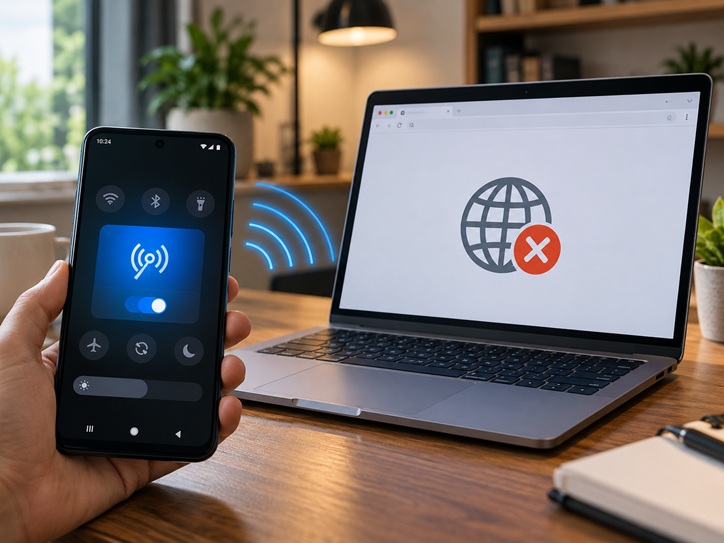
You turn on the hotspot on your Android phone.
Your laptop, tablet or another phone connects successfully.
The Wi-Fi symbol appears.
But when you open a website, you get:
“No Internet.”
Or:
“Connected without internet.”
This is a common Android hotspot problem.
The important thing to understand is that connecting to the hotspot and connecting to the internet are two different things.
Your second device may successfully connect to your phone through Wi-Fi, but your Android phone may not be successfully sharing its mobile-data connection.
Google explains that Android hotspot and tethering use your phone’s mobile-data connection to provide internet access to another device. Some mobile carriers may also limit or charge separately for tethering.
In this Cyberhub ICT guide, we will troubleshoot the problem step by step before you reset anything.
Why Does Hotspot Say Connected but No Internet?
The most common causes include:
- Mobile data is not working on the host phone
- Your data bundle has finished
- Your network provider restricts tethering
- The wrong SIM is selected for mobile data
- Temporary network problems
- Incorrect APN settings
- VPN or Private DNS interference
- Hotspot compatibility problems
- A problem with the connected device
- Android network settings becoming corrupted
The best way to troubleshoot is to start with the phone providing the hotspot.
1. Check Whether the Android Phone Itself Has Internet
This is the most important first test.
Turn off Wi-Fi on the Android phone providing the hotspot.
Leave:
Mobile Data ON
Now open Chrome and visit a website.
Try YouTube or another internet-based app.
If the phone itself cannot access the internet, your hotspot cannot provide internet to another device.
Google recommends testing mobile data directly and switching between Wi-Fi and mobile data when troubleshooting Android internet problems.
If mobile data does not work
Check:
- Your data balance
- Network signal
- Mobile-data setting
- Selected SIM
- Airplane Mode
- APN configuration
Fix the mobile-data problem first.
2. Turn Mobile Data Off and Back On
Sometimes the mobile network connection simply needs to reconnect.
Turn:
Mobile Data OFF
Wait about 10 seconds.
Turn:
Mobile Data ON
Then test internet access on the phone.
If it works, turn the hotspot back on and reconnect your second device.
3. Use Airplane Mode to Refresh the Network
Turn on:
Airplane Mode
Wait around 10 seconds.
Turn it off.
Google recommends this as one of the troubleshooting steps for Android mobile-data problems.
Wait for your normal mobile-network indicator to return, such as:
4G
LTE
or:
5G
Then test the phone’s internet before turning the hotspot on again.
4. Restart Both Devices
Restart:
The Android phone providing the hotspot
and:
The device connected to it
A temporary network problem on either device can create the “connected but no internet” message.
Google includes restarting the device among its first troubleshooting recommendations for Android internet problems.
After restarting:
- Turn on mobile data.
- Confirm internet works on the Android phone.
- Turn on hotspot.
- Reconnect the second device.
5. Check Your Data Bundle
Your phone may have:
Strong signal.
Hotspot enabled.
Another device connected.
But no usable mobile data.
Check your remaining data through your network provider’s official:
- App
- USSD service
- Website
- Account portal
If your bundle has finished, the connected device will not have internet access.
Do not assume that seeing 4G or 5G automatically means you still have usable data.
6. Your Network Provider May Treat Hotspot Data Differently
Some mobile carriers place restrictions on tethering.
Google specifically warns that some carriers may limit tethering or charge additional fees for using hotspot functionality.
Samsung’s current hotspot troubleshooting guidance also notes that some plans may treat tethering data separately. In such cases, a phone may still have regular mobile data while connected hotspot devices cannot access the internet.
If:
Internet works perfectly on your phone
but:
Every hotspot-connected device has no internet
contact your mobile provider and confirm whether hotspot or tethering is allowed on your plan.
7. Check the Correct SIM for Mobile Data
This is particularly important on dual-SIM Android phones.
You may have:
SIM 1 — no data
and:
SIM 2 — active data bundle
but Android is trying to use SIM 1.
Go to:
Settings → SIM Cards / Mobile Network
Look for:
Mobile Data
Make sure the correct SIM is selected.
Menu names differ between Samsung, Tecno, Infinix, Redmi, Oppo and other manufacturers.
After changing the data SIM, turn hotspot off and back on.
8. Turn the Hotspot Off and Back On
Open:
Settings → Network & Internet → Hotspot & Tethering
or:
Settings → Connections → Mobile Hotspot and Tethering
Turn the hotspot off.
Wait a few seconds.
Turn it back on.
Android normally allows phones to share mobile data using Wi-Fi hotspot, Bluetooth tethering or USB tethering.
Reconnect your other device and test.
9. Forget the Hotspot Network on the Connected Device
The problem may be on the laptop, tablet or second phone.
On the connected device:
Open Wi-Fi settings.
Select your Android hotspot.
Choose:
Forget Network
Then reconnect using the hotspot password.
This forces the device to create a fresh Wi-Fi connection instead of relying on old network settings.
10. Test Another Device
This is an excellent troubleshooting trick.
If your laptop says:
Connected, no internet
try connecting another smartphone to the same hotspot.
If the second device gets internet
The hotspot phone is probably working correctly.
The problem is more likely with the original laptop or tablet.
If no device gets internet
Focus on:
- The host phone
- Mobile data
- Carrier restrictions
- APN settings
- Android network configuration
This simple test can save a lot of unnecessary troubleshooting.
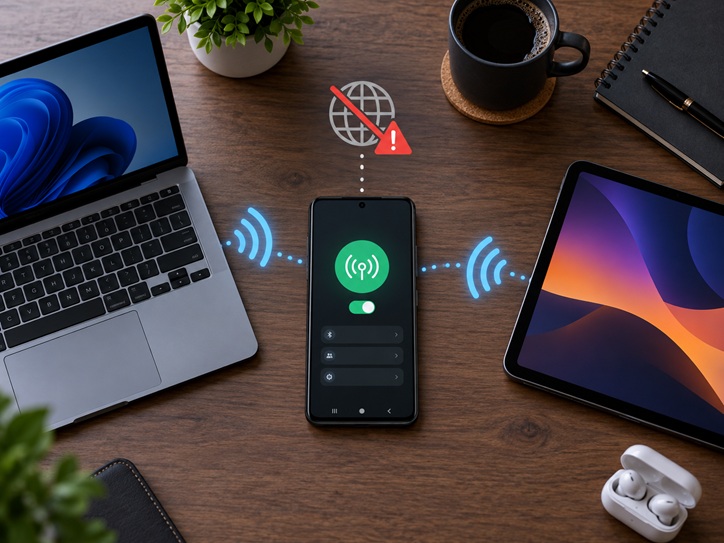
11. Check the Hotspot Frequency Band
Many Android phones let you choose between:
2.4 GHz
and:
5 GHz
Newer devices usually support both.
Older laptops, tablets and phones may work better with 2.4 GHz.
Open your hotspot settings and look for:
AP Band
Hotspot Band
or:
Frequency
Try:
2.4 GHz
then reconnect.
Samsung also notes that hotspot configuration options can vary depending on the phone model, software and carrier.
12. Check Hotspot Security Compatibility
Some newer Android phones may use:
WPA3
for hotspot security.
Older devices may not support it correctly.
If the connected device behaves strangely or refuses to work properly, check your hotspot’s security setting.
If your phone allows it, try:
WPA2
for compatibility.
Samsung specifically recommends checking WPA3 versus WPA2 compatibility when devices have difficulty connecting to mobile hotspots.
Do not leave your hotspot unsecured.
Always use a strong password.
13. Disconnect Extra Devices
If several people are using your hotspot at once, connection quality may drop.
Open hotspot settings and check:
Connected Devices
Temporarily disconnect everything except the device you are testing.
Then try again.
Google says Android phones can support multiple hotspot-connected devices, although actual performance depends on your phone, carrier and signal quality.
14. Turn Off VPN Temporarily
A VPN changes how your phone routes internet traffic.
Sometimes VPN configuration can interfere with tethering.
If you use:
- Free VPN apps
- Work VPN
- Security VPN
- Ad-blocking VPN
temporarily disconnect the VPN.
Turn hotspot off and back on.
Then test again.
If hotspot internet returns, investigate the VPN’s tethering or local-network settings.
Do not permanently remove a work VPN without checking your organization’s requirements.
15. Check Private DNS
Private DNS can occasionally contribute to situations where a device appears connected but websites refuse to load.
Search Android Settings for:
Private DNS
If you manually entered a custom DNS provider, temporarily change it to:
Automatic
Then test your mobile data and hotspot again.
If nothing changes, you can restore your previous configuration.
16. Check Your APN Settings
APN stands for:
Access Point Name
It tells Android how to connect to your mobile network’s data service.
An incorrect APN can create strange mobile-data or tethering problems.
Go to:
Settings → Mobile Network → Access Point Names
The exact location varies.
Important
Do not copy random APN settings from social media simply because someone says they provide “faster internet.”
Use the official settings provided by your mobile network.
If you previously changed the APN manually, you may have an option such as:
Reset to Default
Resetting to your carrier’s default configuration can sometimes solve the problem.
17. Check Data Saver
Android Data Saver restricts background mobile-data activity.
Normally this should not completely destroy hotspot functionality, but if you are troubleshooting, temporarily disable it.
Go to:
Settings → Network & Internet → Data Saver
Turn it off.
Then restart hotspot and test again.
If nothing changes, you can re-enable Data Saver.
18. Check Battery Saver
Battery Saver may restrict certain background and network activity.
Temporarily turn it off:
Settings → Battery → Battery Saver
Then test hotspot again.
If hotspot works properly afterward, review your phone’s power-management settings.
You do not necessarily need to leave Battery Saver permanently disabled.
19. Make Sure Hotspot Has Not Reached a Data Limit
Some Android phones allow users to configure hotspot limits.
You may see settings such as:
Data Limit
One-Time Data Limit
Turn Off Hotspot When Limit Reached
Check your hotspot settings.
If a limit was accidentally set very low, Android may stop providing data after that amount is reached.
Reset or increase the limit if appropriate.
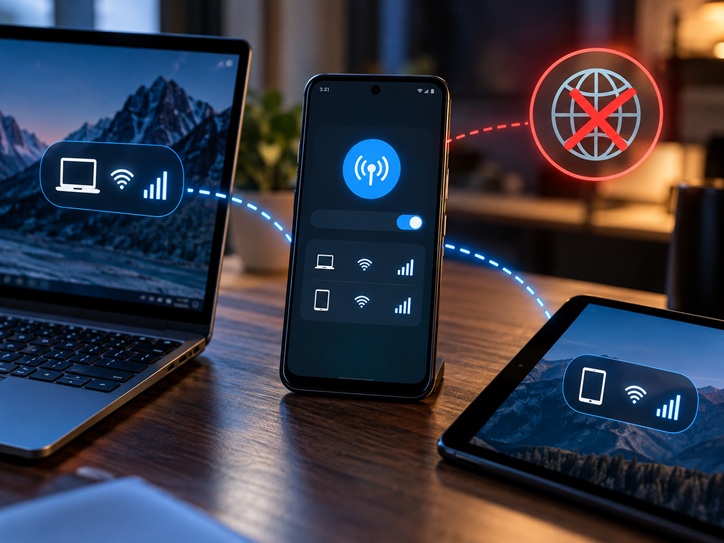
20. Check Whether Your Phone Is Roaming
If you are roaming, hotspot behaviour may depend on your carrier and plan.
Go to:
Settings → Mobile Network
Check:
Data Roaming
Do not turn roaming on blindly because roaming charges may apply.
If you are outside your normal coverage area, confirm the correct settings with your mobile provider.
21. Update Android
Software bugs can affect networking and hotspot functionality.
Go to:
Settings → System → Software Update
or:
Settings → About Phone → Software Update
Install any official update available.
Restart afterward.
Then test the hotspot again.
22. Reset Network Settings
If nothing else works, you can reset Android’s network configuration without factory-resetting the entire phone.
Go to:
Settings → System → Reset Options
Look for something similar to:
Reset Wi-Fi, Mobile & Bluetooth
The wording varies by manufacturer.
Be aware
This may remove:
- Saved Wi-Fi networks
- Bluetooth pairings
- Some mobile-network settings
But it does not normally erase your photos, videos and personal documents.
After the reset:
Restart the phone.
Turn on mobile data.
Test internet.
Then turn hotspot on.
23. Try USB Tethering
If Wi-Fi hotspot still refuses to provide internet to your laptop, try another tethering method.
Connect the Android phone to the computer with a compatible USB cable.
Then open:
Settings → Hotspot & Tethering → USB Tethering
Google confirms that Android supports USB tethering, although Mac computers do not support Android USB tethering through the standard method.
Why this test matters
If USB tethering works but Wi-Fi hotspot does not, your mobile-data connection is probably fine.
The issue is more likely related to Wi-Fi hotspot configuration.
24. Try Bluetooth Tethering
Android can also share its internet connection over Bluetooth.
Pair the two devices.
Then enable:
Bluetooth Tethering
This is usually slower than Wi-Fi hotspot, but it can help determine whether the problem is specifically related to Wi-Fi hotspot functionality.
Hotspot Connected but No Internet on a Laptop
If your Android hotspot works on another phone but not your laptop, focus on the laptop.
Try:
- Forget the hotspot network.
- Reconnect.
- Restart the laptop.
- Disable and re-enable Wi-Fi.
- Turn off the laptop’s VPN.
- Try automatic DNS.
- Update the Wi-Fi driver.
- Test another Wi-Fi network.
If the laptop cannot access the internet through any Wi-Fi network, the Android hotspot may not be the actual problem.
Hotspot Works on One Phone but Not Another
This often points to compatibility or saved network configuration.
On the problem device:
Forget the network.
Reconnect.
If necessary, change the hotspot to:
2.4 GHz
and:
WPA2
Then test again.
Hotspot Connected but Internet Is Extremely Slow
Connected does not necessarily mean the connection will be fast.
Hotspot speed depends on:
- Mobile signal
- Network congestion
- Number of connected devices
- Data-plan speed restrictions
- Phone temperature
- 4G/5G availability
- Distance between devices
Try moving to an area with better signal.
Disconnect unnecessary devices.
Place the phone near the connected device.
Avoid covering the phone or allowing it to overheat.
The Fastest Troubleshooting Method
If you do not want to go through every setting individually, follow this order:
Step 1
Turn Wi-Fi off on the host phone and confirm mobile data works directly on the phone.
Step 2
Check your data balance and selected SIM.
Step 3
Turn Airplane Mode on for 10 seconds, then off.
Step 4
Restart both devices.
Step 5
Turn hotspot on and reconnect.
Step 6
Forget the hotspot network on the connected device and reconnect.
Step 7
Try another device.
Step 8
Try 2.4 GHz/WPA2 if compatibility appears to be the issue.
Step 9
Turn off VPN and custom Private DNS temporarily.
Step 10
Check carrier tethering restrictions and APN settings.
Step 11
Reset network settings only if the earlier steps fail.
This sequence will identify most hotspot problems without deleting your personal data.
Do You Need to Factory Reset Your Phone?
Usually, no.
“Hotspot connected but no internet” is normally a network, carrier or configuration problem.
Before considering a factory reset, check:
- Mobile data
- Data balance
- Correct SIM
- Carrier tethering rules
- APN
- VPN
- Private DNS
- Hotspot compatibility
- Network reset
A complete factory reset is far more drastic than necessary for most hotspot issues.
Conclusion
When your Android hotspot shows connected but no internet, remember one important principle:
The Wi-Fi hotspot connection may be working perfectly while the mobile internet connection behind it is not.
Start with the Android phone providing the hotspot.
Make sure mobile data works directly on that phone.
Then check your:
Data bundle
Selected SIM
Carrier tethering support
APN
VPN
and:
Hotspot settings
After that, test the connected device itself.
At Cyberhub ICT, we recommend troubleshooting in a simple order:
Check the internet source → check the hotspot → check the connected device.
That approach is faster than changing random settings or resetting your entire phone.
Related Cyberhub ICT Guides
You can internally link this article with:
Android Phone Problems: A Step-by-Step Troubleshooting Guide Before You Reset
How to Reduce Mobile Data Consumption on Android and iPhone
How to Stop Android From Killing Apps in the Background
Why Are Notifications Delayed on Android Until I Unlock the Phone?
How to Fix “App Not Installed” on Android Without Losing Data
Why Does My Android Phone Restart by Itself at Night?
These articles strengthen your Android Troubleshooting content cluster.
About Cyberhub ICT
Cyberhub ICT Center provides ICT training and technology services including Internet & Cyber Security, Web Design & Blogging, Digital Marketing, Desktop Publishing, Graphics Design, Social Media Management, Content Creation and Forex Trading Training.
For practical Android troubleshooting, cybersecurity awareness and digital technology guides, follow Cyberhub ICT.
Website: cyberhubict.online
Email: cyberhubict@gmail.com
Phone: 08061601662
Frequently Asked Questions
Why is my Android hotspot connected but there is no internet?
Your second device may be successfully connected to the phone through Wi-Fi while the phone itself has no usable mobile-data connection. Data-plan restrictions, carrier tethering policies, APN problems or device settings can also be responsible.
How do I know whether my hotspot or mobile data is the problem?
Turn hotspot off, disable Wi-Fi on the host phone and try browsing using mobile data. If the phone itself cannot access the internet, fix mobile data first.
Can I have mobile data but no hotspot internet?
Yes. Some carriers limit or separately manage tethering on certain plans. Samsung notes that tethering data may be exhausted even when ordinary mobile data remains available.
Why does my hotspot work on one device but not another?
The problem may involve saved Wi-Fi settings or compatibility. Forget and reconnect to the hotspot, and consider testing 2.4 GHz or WPA2 for an older device.
Can VPN cause hotspot problems?
It can in some configurations. Temporarily disabling the VPN is a useful troubleshooting test.
Should I change my APN?
Only if necessary. Use your network provider’s official APN settings or reset to the default configuration. Avoid random APN settings from unofficial sources.
Will resetting network settings delete my pictures?
A network reset normally affects Wi-Fi, Bluetooth and network configuration rather than personal photos and videos. Review the warning shown by your particular phone before confirming.
Do I need to factory reset my phone?
Usually not. Mobile-data checks, carrier restrictions, hotspot settings, APN troubleshooting and a network-settings reset should be tried first.
